Upload the PDF files you want to combine. Reorder the files if needed.
What this tool does
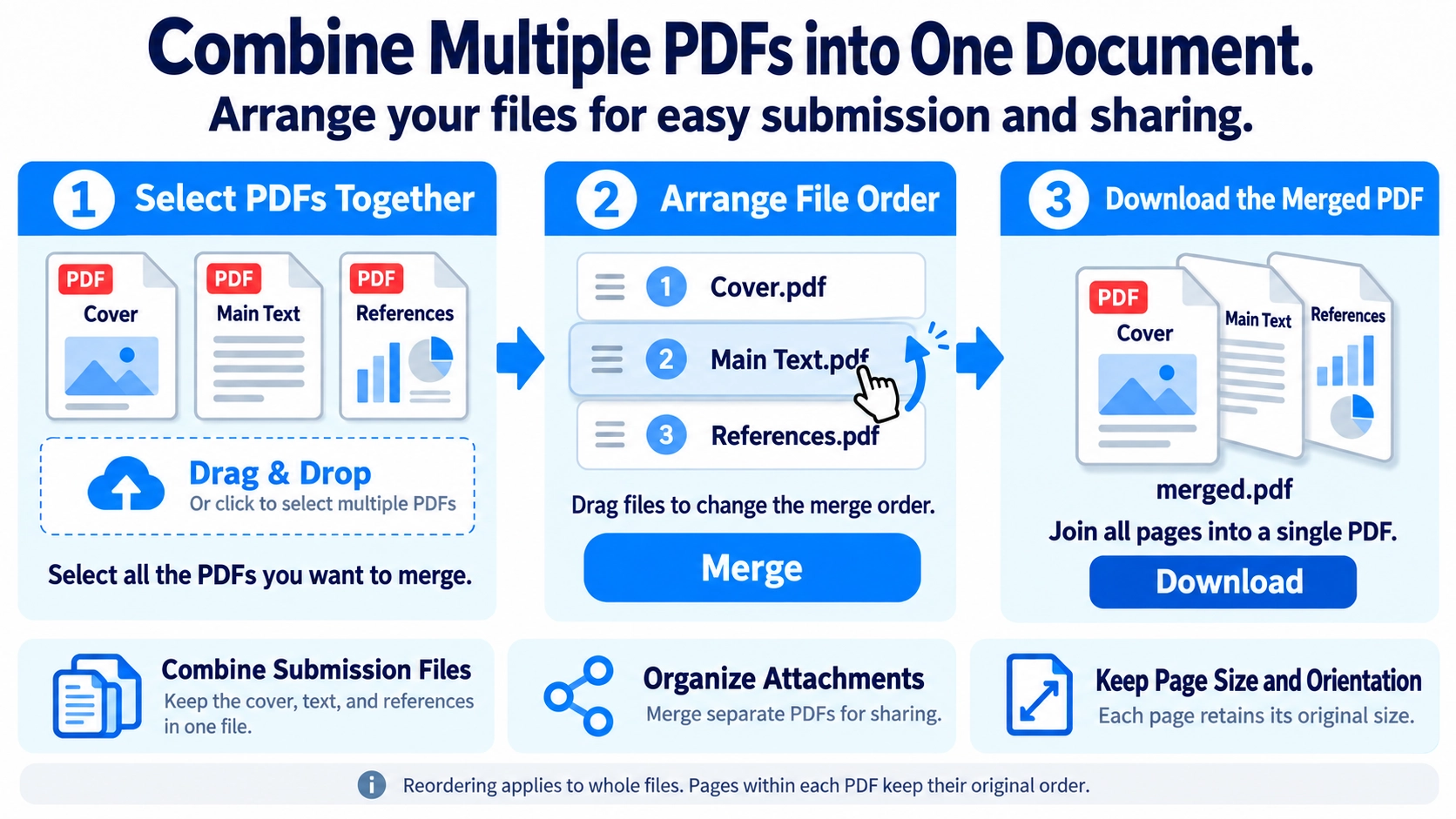
Combine several PDFs into one document. Drag files into your preferred order before merging them in your browser.
How to use it
- Upload the PDF files you want to combine.
- Reorder the files if needed.
- Run the merge process and review the result.
- Download the merged PDF.
Supported input and notes
PDFs with different page sizes or orientations can be merged. Processing many large files may take longer, so verify their order before saving.
When it is useful
Useful for combining reports, attachments, invoices, or handouts into one document.
Merging PDFs is more than placing files into one document. Order, cover pages, mixed page sizes, and the final file size all matter when you are preparing a PDF for submission or sharing.
How Merging Works
This tool copies pages from each source PDF into one new PDF in the order you choose. It does not standardize page size or orientation, so mixed page dimensions and portrait/landscape pages remain mixed.
Combining files does not automatically standardize page dimensions. Check the finished PDF if a uniform layout is important.
Common Uses
Work documents
Combine a proposal, quote, specification, and appendix into one file.
School assignments
Put a cover page, report, and references into a single submission.
Scanned documents
Reassemble pages that were scanned in several batches.
Applications
Place a resume, supporting documents, and forms in the requested order.
File Order
- Decide the finished sequence before you start, such as cover → main document → appendix.
- Open files when names alone do not make their contents clear.
- Drag and drop the PDFs into the correct order in the tool.
- Open the merged result and check the beginning, middle, and final pages before sharing it.
Merge vs Reorder
Merge PDF
Combines separate PDF files into one document.
Reorder PDF pages
Changes the page sequence inside a PDF that is already one file.
If you need file-level ordering first and page-level cleanup afterward, merge the files and then use the PDF page reorder tool.
Image Quality
This tool copies PDF pages without rasterizing them or intentionally reducing image resolution.
Compare the source and output at the same zoom level if visual fidelity is important.
File Size
Merging does not perform file compression. The final size can increase or decrease depending on how the source PDFs store their resources, so this is not a file-size reduction tool.
If you plan to attach the result to email, check the final file size against the mail service or recipient limit.
Final Check
- The correct cover or first page is at the beginning
- No document was included twice or left out
- Mixed portrait, landscape, or paper sizes are acceptable
- The final filename and file size meet the submission requirements
How many PDFs can I merge?
Practical limits depend on browser memory, device performance, and the size of the PDFs. For very large jobs, merge smaller groups first.
Can I delete pages after merging?
Yes. Open the merged file in the PDF page delete tool and remove pages you no longer need.
How do I move only the cover page?
Change the file order before merging, or use the page reorder tool afterward for page-level changes.
How is merging different from putting files in a ZIP?
A merged PDF becomes one continuous document. A ZIP keeps the original files separate inside an archive.
Can I merge PDFs that use different page sizes?
Yes. The pages can remain A4, Letter, landscape, portrait, or other sizes inside the same merged document. If the recipient requires consistent dimensions, check the finished PDF before submitting it.