Upload the source file. Choose the pages, layout, or other tool-specific options.
What this tool does
Add text watermarks to PDF pages and adjust their angle, size, and opacity, for example to mark internal documents as confidential.
How to use it
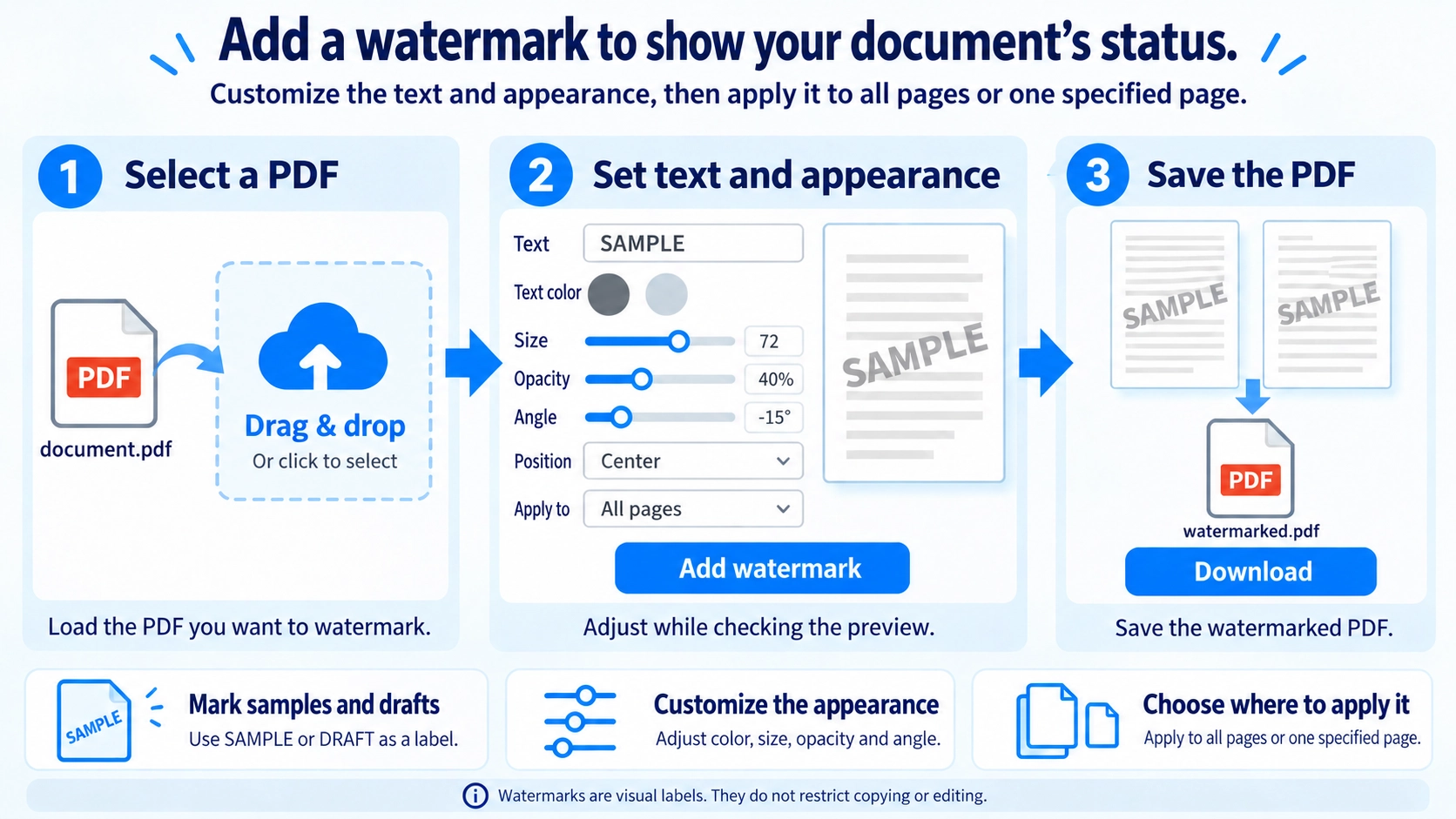
- Upload the PDF and enter your watermark text.
- Set the text size, opacity, angle, color, and placement.
- Choose all pages or specified pages, then check the preview.
- Click the add-watermark action and download the marked PDF.
Supported input and notes
Text watermarks can be placed on all or selected pages. Check rotation and opacity so the underlying PDF remains readable.
When it is useful
Useful for marking PDFs as drafts, samples, or confidential copies with visible text.
A PDF watermark places repeated text such as CONFIDENTIAL, SAMPLE, or DRAFT across pages so the document’s status is obvious. The key is to make the watermark visible without making the document difficult to read.
Why Add a Watermark
Watermarks can communicate handling instructions, draft status, sample status, or ownership context on each page. They are useful as a visible reminder rather than a technical access-control system.
Watermark Examples
CONFIDENTIAL
Signals that the document should be handled carefully or shared within a limited group.
SAMPLE
Marks a document as an example rather than a final deliverable.
DRAFT
Shows that the content is not yet final.
COPY
Helps distinguish a copy from an original or master version.
Watermark Style
- Identify the most important content areas on the page.
- Choose a font size large enough to notice without dominating the document.
- Lower opacity until body text remains easy to read.
- If the watermark is angled, make sure it does not obscure signatures, QR codes, or key figures.
Watermark Opacity
There is no single correct opacity. The right level depends on the background, body text, and whether the PDF will be printed. The watermark should be noticeable without making the document hard to read.
If it is too strong, reduce the opacity or font size and check the result again, including print preview when printing matters.
Copy Protection
Watermark
Visually communicates status or handling intent.
Permissions or access control
Controls who can open, edit, or distribute a file through other mechanisms.
A visible watermark alone cannot guarantee that copying or redistribution is technically impossible.
Why Add a Watermark
If a single page is exported, printed, or forwarded separately, the status label remains visible. This is especially useful for confidential, sample, and draft documents.
Final Check
- Body text and tables remain readable
- Important areas such as signatures and codes are not covered
- The watermark appears where expected on every page
- A DRAFT or SAMPLE label is not accidentally left on a final version
Does a watermark prevent copying?
It can discourage or identify redistribution, but it is not a complete technical copy-prevention method.
Can I use a company name as the watermark?
Yes. Enter the company or project name in the watermark text field.
Can I watermark only one page?
Yes. Set Target to “Specified page only” and choose the page number to watermark only that page.
When should I use CONFIDENTIAL, SAMPLE, or DRAFT as a watermark?
CONFIDENTIAL commonly indicates restricted information, SAMPLE marks an example, and DRAFT indicates unfinished content. A watermark does not enforce access control, so sensitive files should also use appropriate sharing and permission settings.