Upload the source file. Choose the pages, layout, or other tool-specific options.
What this tool does
Add page numbers to a PDF, choosing their position, font size, format, and starting number.
How to use it
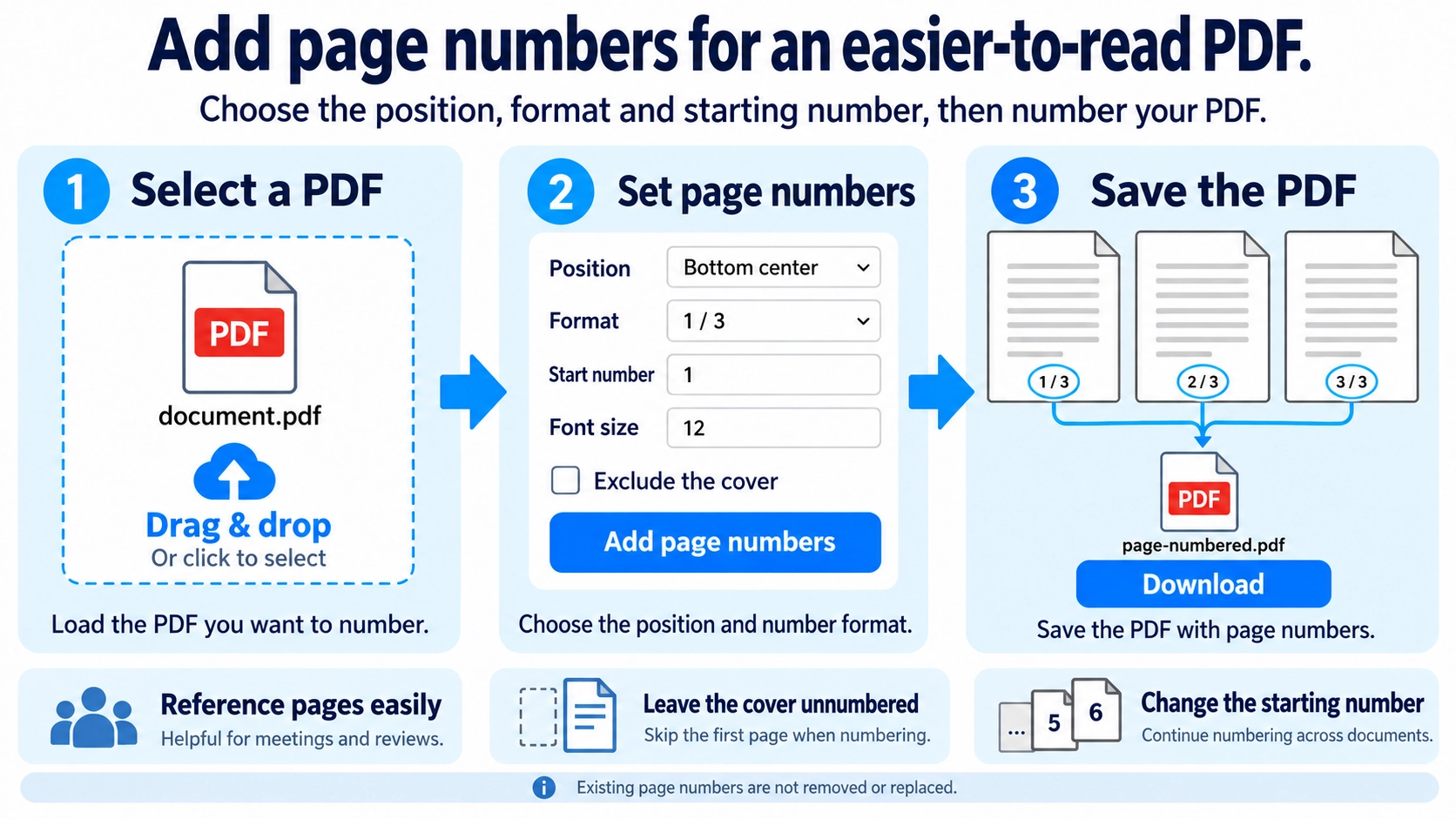
- Upload a PDF that needs page numbers.
- Choose the number position and display format.
- Set the starting number and font size, and exclude the cover page if needed.
- Click “Add Page Numbers” and download the updated PDF.
Supported input and notes
The starting number, format, and cover-page exclusion affect numbering. Review placement to avoid overlapping the document text.
When it is useful
Useful for numbering reports, manuals, and multi-page PDF handouts.
Page numbers make long PDFs easier to discuss, review, print, and restore if pages become separated. Decide the starting number, position, and treatment of the cover before adding numbering.
Why Add Page Numbers
Reports, proposals, manuals, and handouts are easier to reference when people can say “see page 12.” Printed copies are also easier to put back in order.
Number Position
Bottom right
A familiar position that stays out of the way in many single-sided documents.
Bottom center
Useful when you want the same position regardless of left or right pages.
Bottom left
Can work when the right side is reserved for other layout elements.
Alternating left/right
The left-to-right and right-to-left spread options alternate the number between the bottom-left and bottom-right positions on successive pages.
Before Numbering
- Choose whether the cover counts as page 1 or whether numbering starts with the body.
- Set the starting number, especially when this PDF continues an earlier document.
- Pick a position that does not overlap text, logos, or footnotes.
- Check the first, middle, and last pages after export.
Cover Page and Start Number
It depends on the document. Some reports count the cover but hide its number, while others exclude the cover and start the first body page at 1. Follow any school, client, or company formatting rules first.
When “Exclude cover page” is enabled, page 1 receives no number and page 2 starts from the selected start number. With the “1 / 10” format, the cover is also excluded from the denominator. You cannot choose an arbitrary later page as the first page to number.
Page Order vs Printed Numbers
PDF page order
The viewer counts the first displayed page as page 1, then page 2, and so on.
Visible page number
The number printed or added on the page itself as content.
Deleting or moving pages changes the viewer sequence, but numbers already printed inside the page do not automatically rewrite themselves.
Start Number
A later volume or continuation may need to pick up where the previous PDF ended. For example, if another file ends on page 20, starting the next one at 21 can make the set read continuously.
Final Check
- Numbers do not overlap body text or footnotes
- Font size is readable
- Portrait and landscape pages still look acceptable
- The first and last numbers match the intended sequence
Can numbering start partway through a PDF?
No arbitrary start page can be selected. The tool can skip only the cover page. To start numbering later in the document, first extract the pages that need numbering, add numbers to that PDF, and merge files again if needed.
Will numbers update automatically after I delete a page?
Numbers already printed on the PDF pages do not renumber automatically after pages are deleted or reordered. Finish page edits first, then add the final page numbers.
Can I number a PDF with mixed portrait and landscape pages?
Yes, but review the placement because the same position can look different across page orientations.
Can this tool remove existing page numbers?
It is designed to add numbers. Numbers already built into the original PDF content are not simply removed by adding a new numbering layer.
What happens if the PDF already has page numbers?
Existing printed numbers are not removed or replaced. The new numbers remain alongside them, and they will overlap if you choose the same position. Use a different position or remove the old numbers in the source document first.