Upload the image file. Adjust the available settings for the tool.
What this tool does
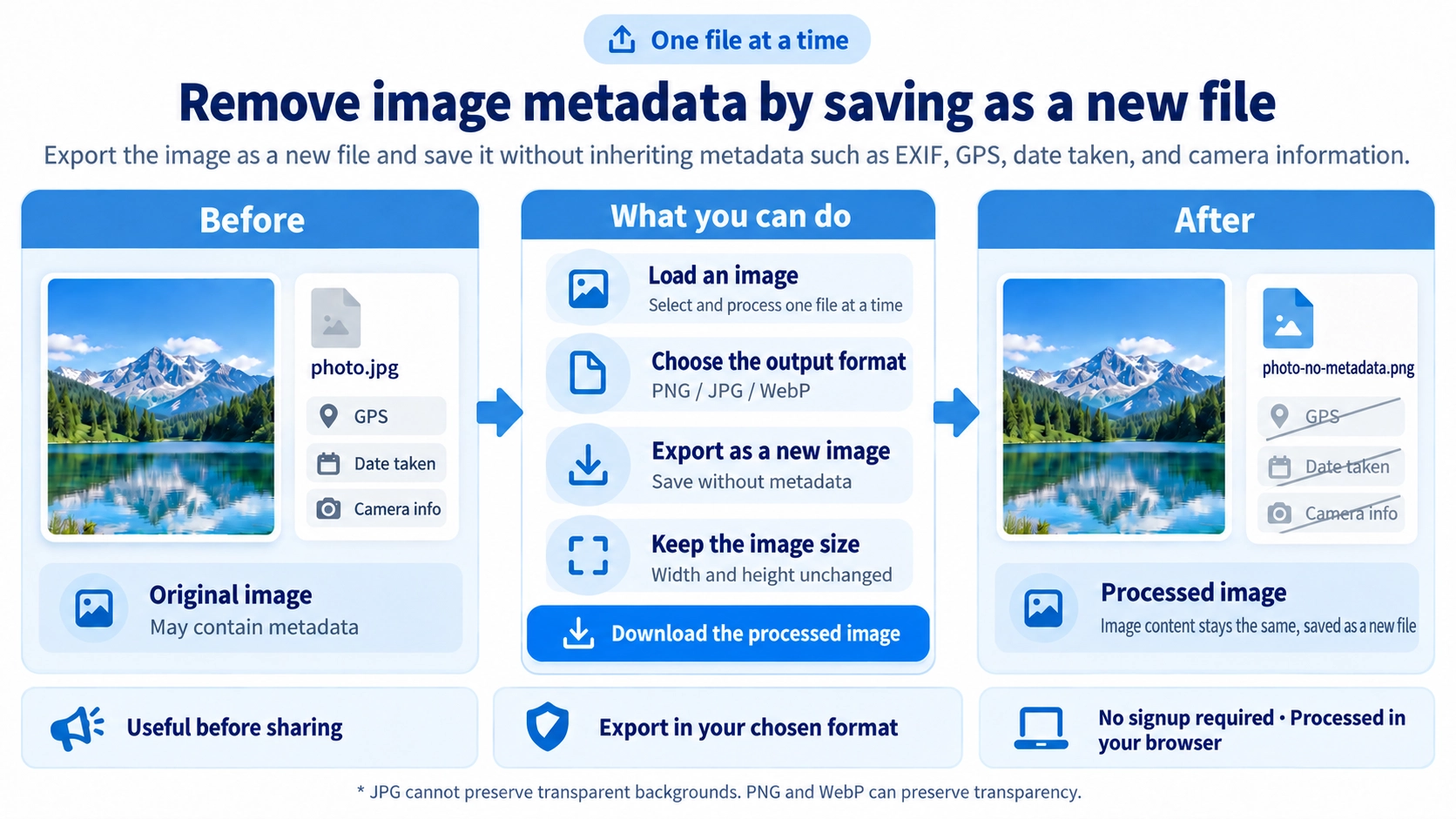
Remove EXIF details such as GPS location, capture time, and camera information by exporting a new image, useful before sharing it.
How to use it
- Select the image whose metadata you want to remove.
- Choose PNG, JPG, or WebP as the output format.
- Click “Create image without metadata” to re-export the image.
- Download the exported copy rather than changing the original file.
Supported input and notes
The image will usually look similar after export, but metadata such as camera details, capture time, or location information is removed. Check the exported file before sharing.
When it is useful
Useful for exporting a copy of a photo with metadata stripped before distribution.
Saved as a New Image
The source image is drawn into a new image file. EXIF and other attached metadata from the original file are not copied into the exported image.
GPS Data Is Not Carried Over
GPS location, capture time, camera details, and other EXIF information are not copied into the new file.
Original Dimensions
The output keeps the same width and height as the source image. Metadata removal does not resize or crop the image.
Output Formats
You can save as PNG, JPG, or WebP. The output format does not have to match the original image format.
JPG and WebP Are Re-Encoded
JPG and WebP are exported at quality 0.92. This means the tool creates a new image rather than removing metadata while preserving the original encoded image data exactly.
Original File Is Kept
The cleaned image is downloaded as a separate file, so the original source image is not overwritten.
FAQ
Will the image look different?
The dimensions stay the same, but JPG and WebP are re-encoded, so a small quality difference is possible.
Can transparency be preserved?
Yes with PNG or WebP. JPG replaces transparent areas with white.
Can GPS data remain after export?
The source EXIF is not copied into the new file. For important cases, you can verify the exported file with the metadata viewer.