Upload the image file. Adjust the available settings for the tool.
JPG / PNG / WebP / GIF supported
What this tool does
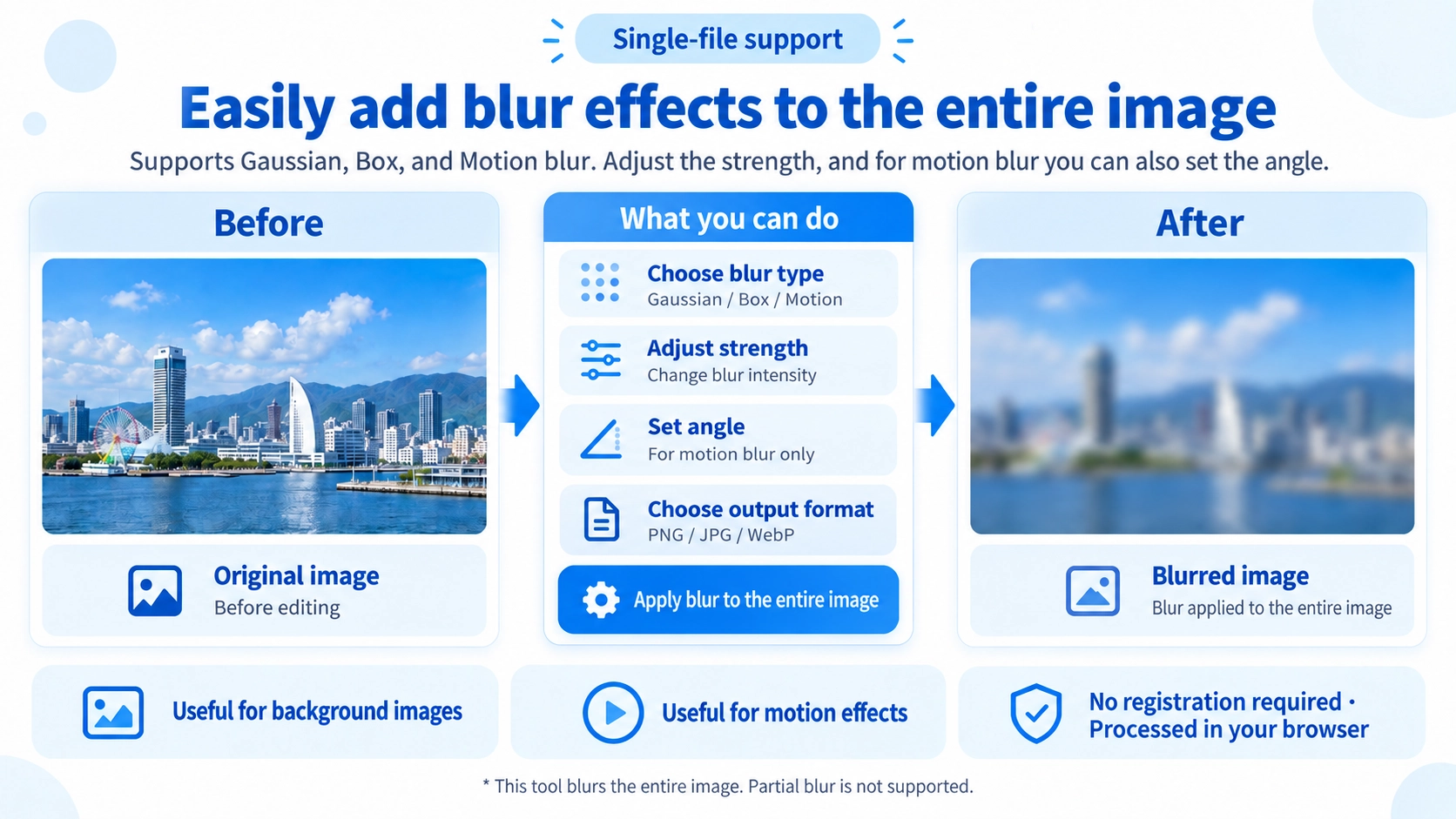
Apply Gaussian, box, or directional motion blur to an entire image. Adjust the blur strength, preview the effect, and export as PNG, JPG, or WebP.
How to use it
- Upload an image and choose Gaussian, Box, or Motion blur.
- Adjust the blur strength and, for Motion blur, its direction.
- Check the preview and select PNG, JPG, or WebP.
- Click “Output” to generate and save the blurred image.
Supported input and notes
The effect is applied to the full image. Motion blur also uses a direction angle; it is not a tool for blurring only selected areas.
When it is useful
Useful for softening an entire photo, creating an out-of-focus look across the whole image, or adding motion and speed effects with directional blur.
Blur Type Changes the Look
Gaussian
Creates a smooth, natural-looking blur that works well for softening a photo.
Box
Produces a more even blur by averaging nearby colors, giving a different look from Gaussian blur.
Motion
Blurs the image in a direction to create a sense of movement or speed.
Motion Angle Controls Direction
Changing the angle changes the direction of motion blur. The angle setting does not affect Gaussian or box blur.
Stronger Blur Makes Fine Detail Harder to See
Increasing blur makes edges and fine details harder to see. Use a light setting for a softer look and increase it only as much as needed when you want content to be less recognizable.
No Partial Blur Selection
This tool applies blur to the whole image. It cannot select only a face, text area, or license plate.
Dimensions Stay the Same
The blurred image keeps the original width and height. Blur does not resize the image.
FAQ
Does this overwrite my original image?
No. The processed result is saved separately.
Can I set an angle for Gaussian or box blur?
No. The angle setting affects motion blur only.
Can I save as PNG, JPG, or WebP?
Yes. You can choose PNG, JPG, or WebP when saving.