Add the files you want to process. Choose the shared output settings for the batch job.
JPG / PNG / WebP supported
What this tool does
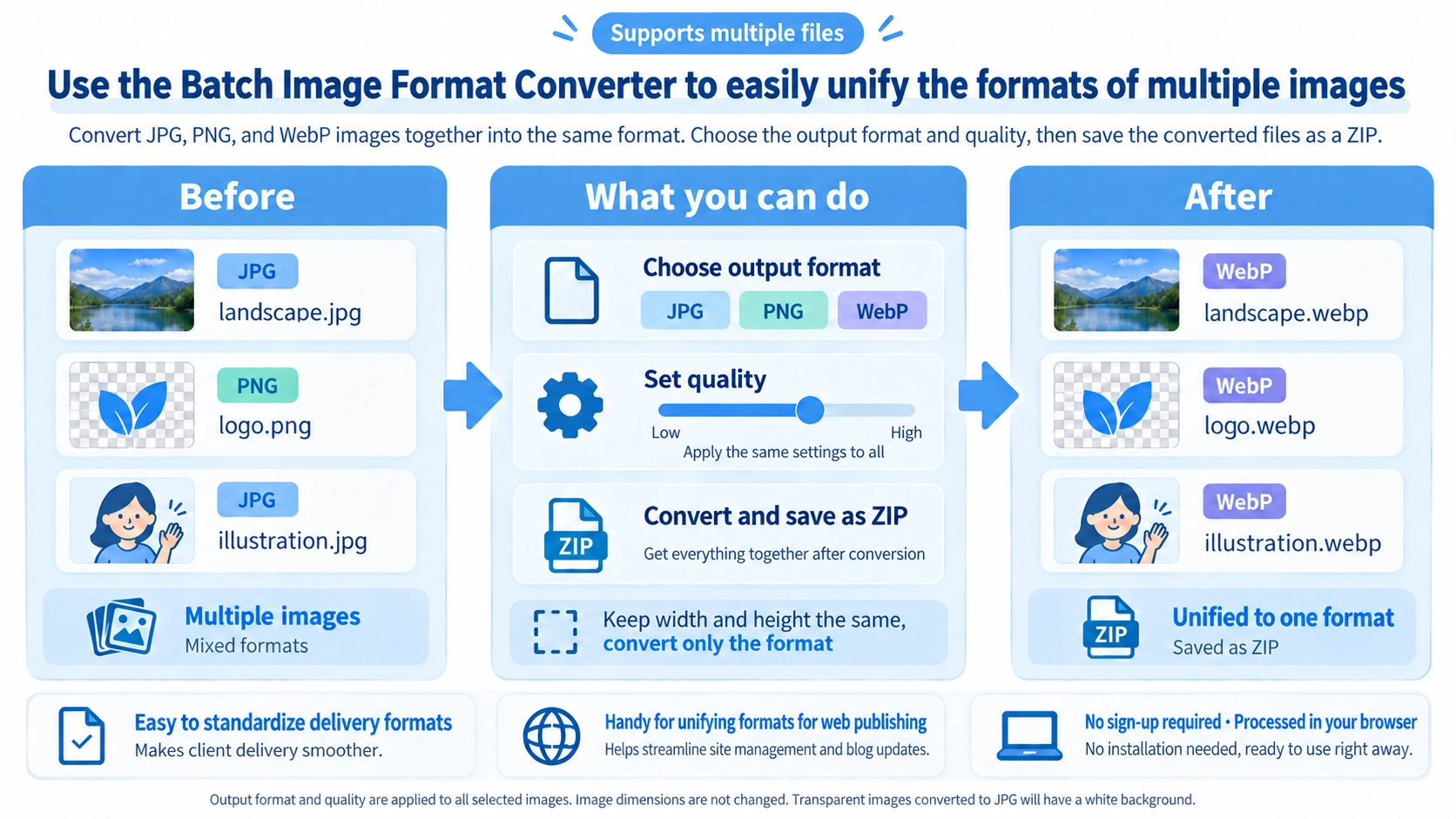
Convert multiple images to JPG, PNG, or WebP at once. Choose output quality and download converted files individually or as a ZIP.
How to use it
- Select the images you want to convert together.
- Choose JPG, PNG, or WebP and adjust quality where applicable.
- Click “Convert” to process the selected images.
- Download the converted files from the results, individually or as a ZIP.
Supported input and notes
Supports mainly JPG, PNG, and WebP. Output format affects transparency and visual quality; choose PNG or WebP if transparency needs to be retained.
When it is useful
Useful when a website or editing workflow requires many images in the same file format.
Batch Conversion
Select multiple images and convert all of them to JPG, PNG, or WebP. The converted files are packaged into a ZIP for saving.
Shared Settings
Output format
Choose JPG, PNG, or WebP once and apply that format to every selected image.
Quality
The same quality value is used for all images and is relevant to JPG and WebP export.
Pixel dimensions
This tool does not resize images, so each file keeps its original width and height.
PNG Quality
Not in the same way as JPG or WebP. PNG is exported from Canvas without a user-adjustable PNG quality/compression control, so the slider does not tune PNG visual quality or file size.
Transparency in JPG
JPG cannot preserve transparency. This tool fills transparent areas with white before JPG export. If transparency must remain, choose PNG or WebP instead.
Convert vs Compress
Standardize file formats
Bulk Image Format Converter is for converting many files to the same JPG, PNG, or WebP format.
Reduce file size
Bulk Image Compressor is for reducing multiple images using shared quality and maximum-width settings.
Large Batches
- Check whether any selected images need transparency before choosing JPG.
- Because all files share one format and quality setting, process very different image groups separately when needed.
- Large batches can use more browser memory and processing time, so split the batch if your device becomes slow.
- After saving the ZIP, inspect a few converted files before using the full batch.
FAQ
Can I choose a different output format for each image?
No. One output format is applied to all selected images.
Can I set a different quality for each image?
No. The quality setting is shared across the batch.
Does conversion resize the images?
No. Each image keeps its original pixel dimensions.
Can I save all converted files together?
Yes. The converted images are saved together in a ZIP file.
What happens to transparent areas when converting to JPG?
They are filled with white.