Upload a JPG, PNG, WebP, or GIF image. For an outline that follows a cut-out subject, an image with a transparent background works best. Then set the outline color, thickness, and corner style.
JPG / PNG / WebP / GIF supported
What this tool does
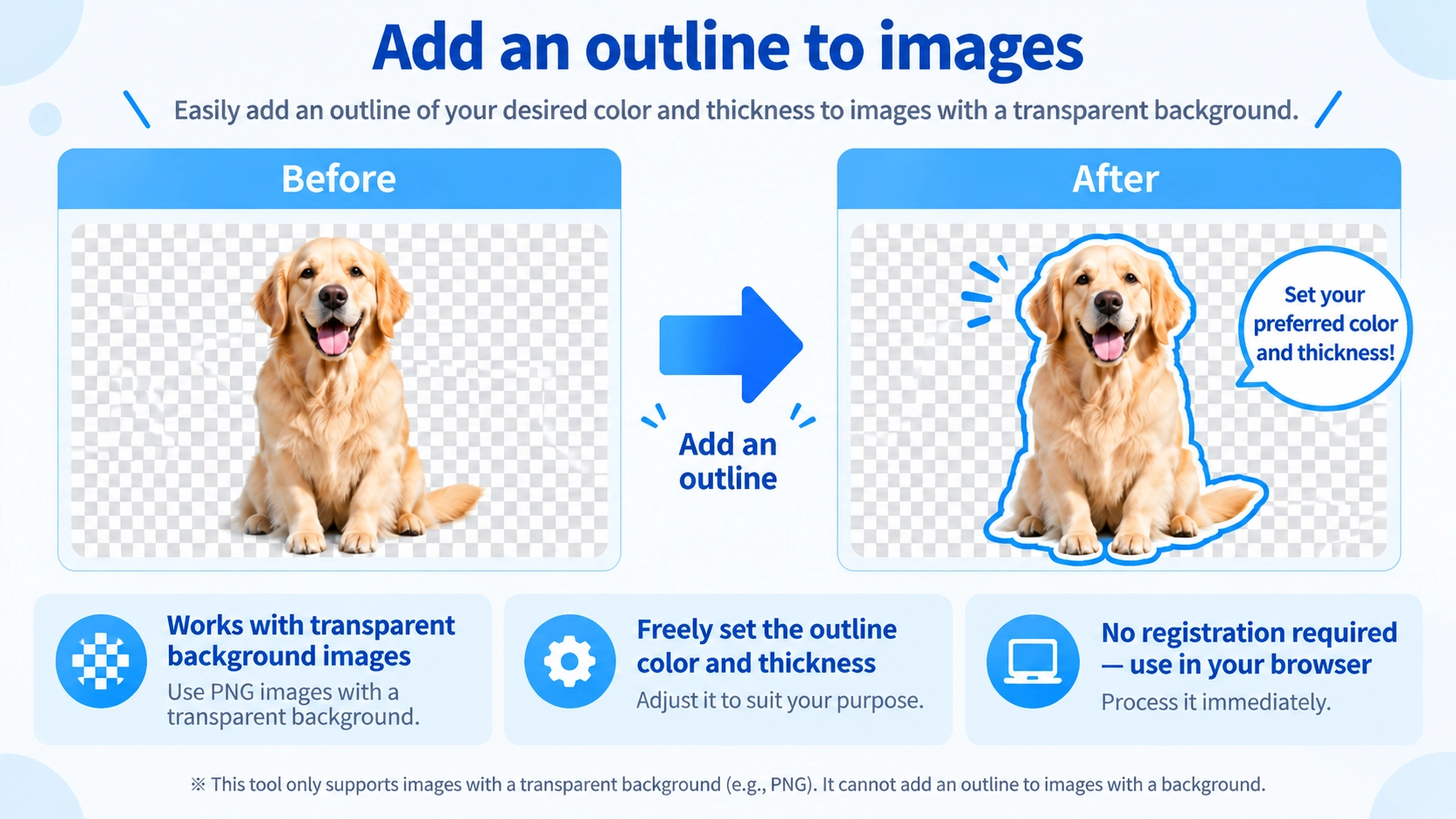
Add an outline along the boundary between transparent and non-transparent pixels. JPG, PNG, WebP, and GIF can be loaded; images with transparent backgrounds allow the outline to follow a cut-out subject.
How to use it
- Upload an image.
- Set the outline color, thickness, and corner style.
- For transparent images, check that the outline follows the cut-out subject in the preview.
- Choose the output format and download the outlined image.
Supported input and notes
Outlines work especially well for cut-out images with transparent backgrounds. Very thick outlines can change the appearance of fine details; adjust them while checking the preview.
When it is useful
Useful for outlining transparent product cutouts, stickers, icons, and other graphics.
Outline vs Border
This tool does not simply draw a rectangle around the whole image. It uses the boundary between transparent and non-transparent pixels to create an outline that follows the subject's shape.
Best Image Types
Images with transparency
When the background is transparent, the tool can follow the subject boundary closely, which is where the outline effect works best.
Images without transparency
The whole image is treated as opaque, so the outline mainly follows the outer edge of the rectangular image.
Canvas Size
The output expands by the outline thickness on every side. A 20px outline makes the result 40px wider and 40px taller than the source.
Corner Styles
Rounded
Expands the outline more smoothly around curves and corners.
Sharp
Keeps corners more squared and angular.
Thickness
You can set the outline from 1 to 100px. Very thick outlines can cover fine details.
Thin Details
The outline is generated from all non-transparent pixels, so thin parts are included. A thick outline can make nearby details merge visually, so check the preview.
Output Formats
PNG / WebP
Use these when you want to keep transparent areas around the outlined subject.
JPG
JPG cannot preserve transparency, so it is not suitable when the transparent background needs to remain.
Animated GIFs
FAQ
Can I change the outline color?
Yes. Choose any color with the color picker.
Is the subject itself enlarged?
No. The source image is drawn at its original size; only the surrounding canvas expands to make room for the outline.
Is this only for transparent PNG files?
No, but transparency is what lets the tool follow a cut-out subject. Without transparency, the outline mainly follows the image's outer edge.
Can I make the outline thicker than 100px?
No. The current range is 1 to 100px.