Choose PNG or JPG, select your WebP images, and click “Convert” to download the converted files.
.webp files supported
What this tool does
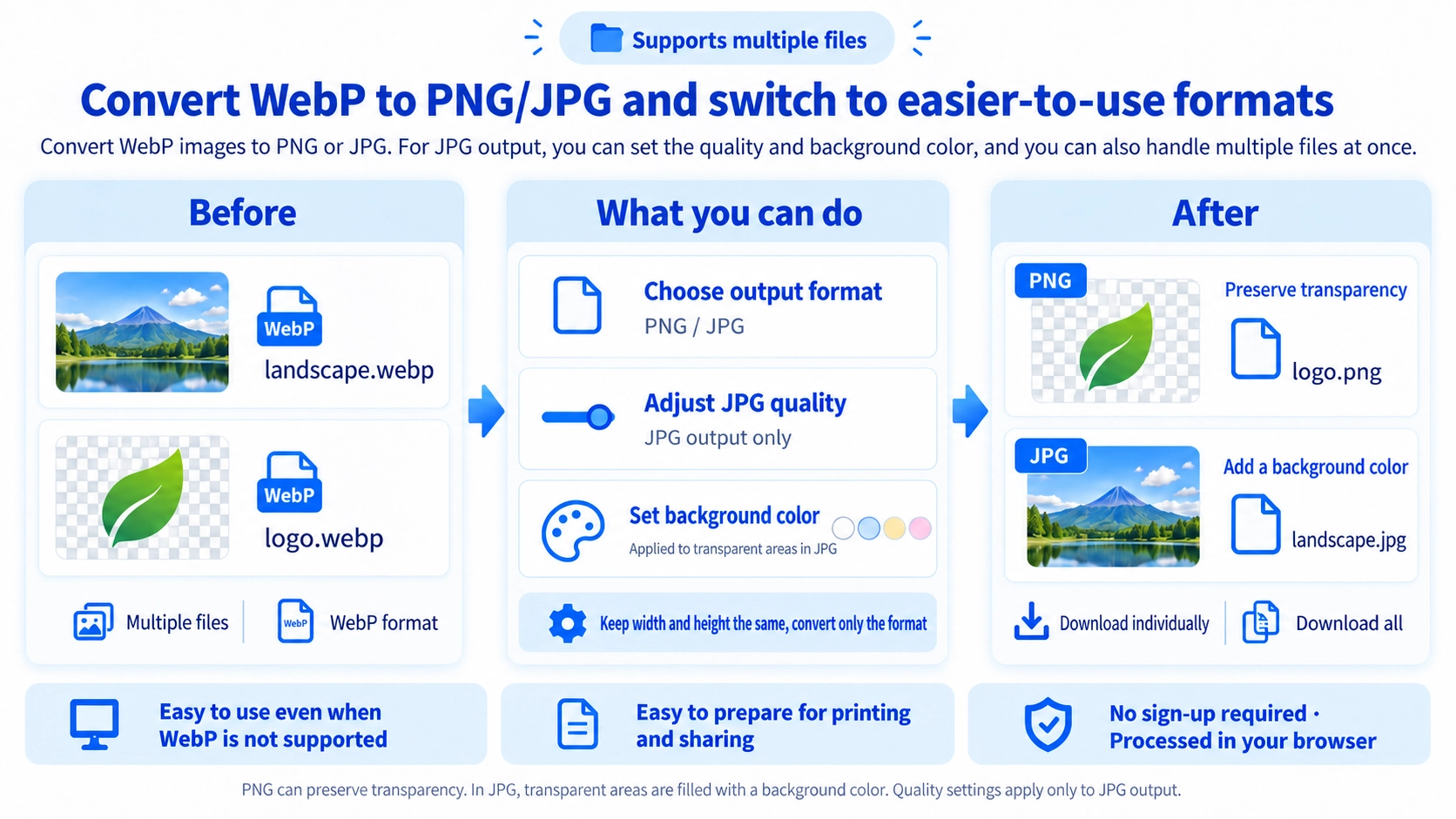
Convert WebP images to PNG or JPG in your browser. Choose the output format and download individual converted images or all of them together.
How to use it
- Choose PNG or JPG as the output format.
- Select one or more WebP images.
- If converting to JPG, choose the background color as needed, then click “Convert”.
- Download the converted files individually or together.
Supported input and notes
Converting a transparent WebP image to JPG adds an opaque background because JPG does not support transparency. Check the selected output format before printing or using another tool.
When it is useful
Useful for preparing images for websites, social media, presentations, ecommerce listings, and general content production.
When to convert WebP to PNG or JPG
Convert WebP when you need to use the image in software or services that require PNG or JPG. Multiple WebP files can be selected and converted to the same output format.
Convert to PNG
PNG can preserve transparent areas. JPG quality and background-color controls are not used in PNG mode.
Convert to JPG
JPG quality can be set from 1 to 100. Transparent areas are filled with your selected background color.
Pixel dimensions
The source WebP width and height are preserved. This tool does not resize the image.
WebP transparency when converted to JPG
JPG cannot preserve transparent pixels. This tool fills transparent areas with the background color you choose before JPG export.
PNG conversion ignores JPG background and quality controls
Those controls apply only to JPG mode. PNG mode exports PNG without applying the JPG quality slider or JPG background fill.
Converting multiple WebP files at once
Select multiple WebP files and convert all of them to PNG or all of them to JPG. In JPG mode, the same quality and background color are used for the whole batch.
“Download All” saves the converted files sequentially; they are not packaged into a ZIP.
Choosing PNG or JPG for WebP conversion
Keep transparency
Choose PNG for logos, cutouts, or other images that need transparent areas.
Use as a photo
Choose JPG when transparency is not needed and you want adjustable JPG quality.
Convert the other direction
Use the WebP Converter to create WebP files.
Change dimensions too
This page keeps the original size. Use the Image Resizer when width or height also needs changing.
WebP to PNG/JPG FAQ
Can the JPG background be a color other than white?
Yes. Choose a color with the picker or enter a color code.
Can I change quality when converting to PNG?
No. The quality control is used only for JPG conversion.
Can I convert multiple WebP files at once?
Yes. Multiple files can be converted to the same selected output format.
Are the converted files saved as a ZIP?
No. “Download All” saves each converted image sequentially.