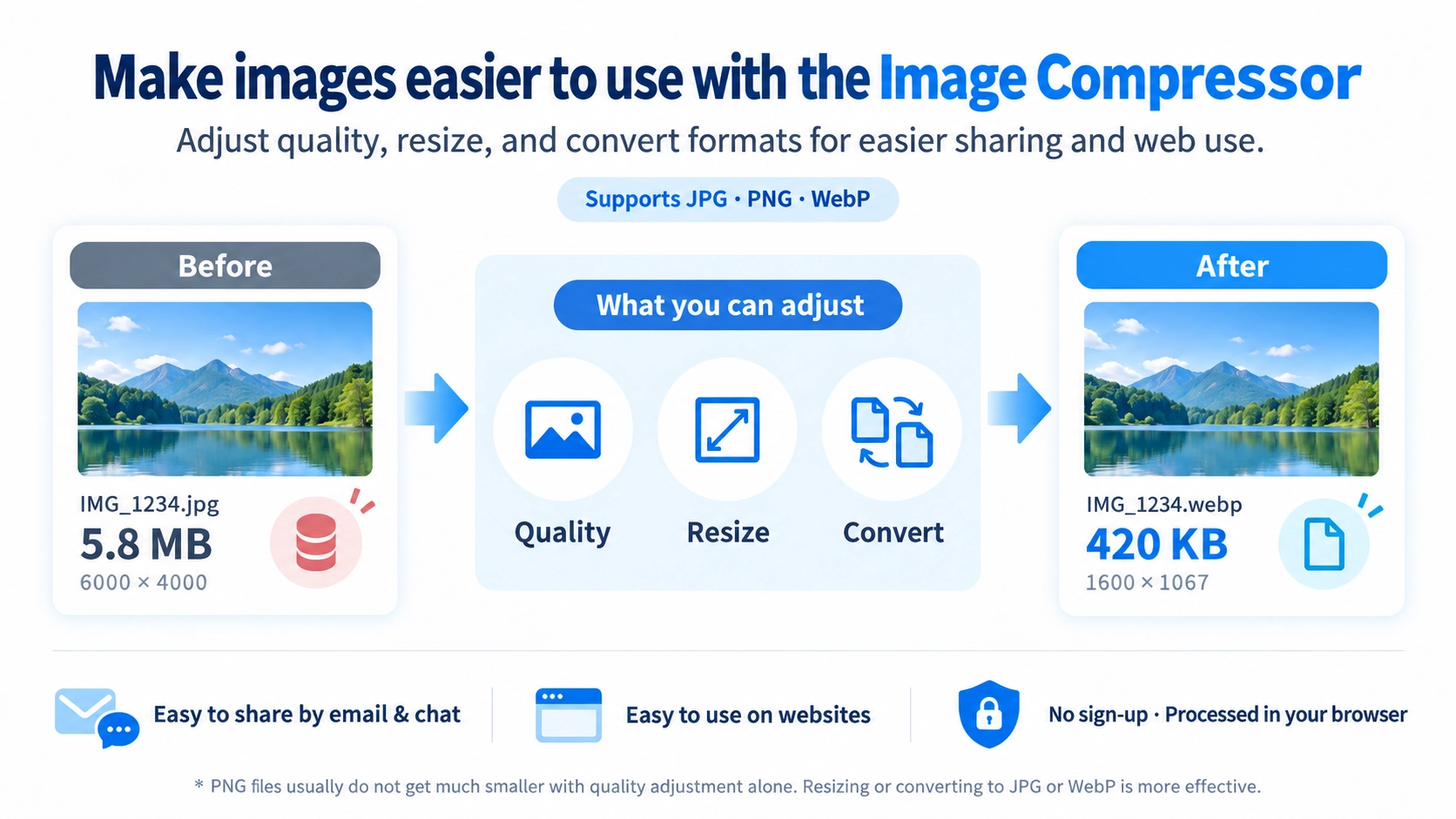
Select a JPG, PNG, or WebP image. Choose the output format, quality, and optional resize settings.
JPG / PNG / WebP supported
What this tool does
Reduce JPG or WebP file size with adjustable quality and optional resizing. For PNG, resize or convert to JPG or WebP instead. Processing takes place in your browser.
How to use it
- Select a JPG, PNG, or WebP image.
- Choose the output format, quality, and optional resize settings.
- Run compression and review the before/after preview and file sizes.
- Download the compressed image if the result looks correct.
Supported input and notes
JPG and WebP benefit most from quality adjustment. PNG is best reduced by resizing or converting to JPG or WebP. Larger images may take longer depending on your device.
When it is useful
Useful when you want to reduce file size for websites, email attachments, chat sharing, social posts, or ecommerce product images.
What Is Image Compression?
Image compression reduces the amount of data needed to store a picture. A smaller file can help web pages load faster, make images easier to send by email or chat, and save storage space.
Lossless compression reorganizes data without discarding image information. Lossy compression reduces the file size by discarding some details. With JPG and WebP, you can adjust quality to control this trade-off. PNG is primarily lossless, so reducing the quality slider does not make PNG output smaller in this tool.
JPG, PNG, and WebP Compared
JPG
Well suited to photos and images with gradients. A small reduction in quality can significantly reduce file size. JPG does not support transparency.
PNG
Useful for logos, illustrations, screenshots, and transparent backgrounds. It preserves details well but is often larger than JPG or WebP for photographs.
WebP
Works for both photos and images with transparency. It can often produce smaller files than JPG or PNG, making it practical for websites.
How Much Should You Compress an Image?
There is no single correct file-size target in KB. The right size depends on where the image will be used, its displayed dimensions, and the detail you need to preserve. First resize the image to the dimensions it will actually be displayed at, then gradually lower quality until you find an acceptable balance.
Websites
Avoid loading images at much higher resolution than visitors need. Resize to the display dimensions, then adjust JPG or WebP quality while checking text and edges for artifacts.
Email attachments
Several full-resolution photos can quickly add up. If full size is unnecessary, reduce the width and height before compressing to make attachments easier to send.
Instagram and other social media
Full camera resolution is often unnecessary for phone viewing. Resize to suit the destination platform before compressing.
Online stores
Product details matter, so do not optimize solely for minimum file size. Keep enough resolution to inspect the item and consider different sizes for thumbnails and zoomable photos.
How to Get an Image Under 1 MB
- Check width and height first. If the resolution is larger than needed, turn on resizing and reduce the dimensions.
- Lower JPG or WebP quality gradually. Avoid immediately choosing the lowest setting; use the preview to evaluate each change.
- Compare output formats. For photos, try both JPG and WebP and compare their sizes at similar visual quality.
- Check the resulting file size. If it is still above 1 MB, adjust quality or dimensions again and rerun compression.
To reduce several images together, you can also use the Bulk Image Compressor.
Why Does Compressing a PNG Sometimes Not Make It Smaller?
PNG normally preserves the original image information using lossless compression. The quality slider on this page controls lossy encoding for formats such as JPG and WebP, so moving it does not reduce the file size when you keep PNG output.
To make a PNG smaller, reduce its width and height, or convert it to JPG or WebP if the destination permits. WebP is also an option when transparency must be retained.
How to Reduce File Size While Preserving Quality
- Resize first: Removing pixels that will never be displayed can reduce file size without a large quality adjustment.
- Choose the appropriate format: Photographs may be smaller in JPG or WebP than in PNG.
- Adjust quality in small steps: Compare the before-and-after previews instead of dropping quality all at once.
- Zoom in on text and products: Check fine lettering, edges, and surface details for unwanted distortion.
Image Compression vs. Image Resizing
Compression primarily reduces file size; resizing changes an image’s pixel width and height. Combining both approaches can produce a much smaller file.
If you specifically need dimensions such as 800 × 600 px, the dedicated Image Resizer provides a more direct workflow.
Image Compression FAQ
Does compression always make an image look worse?
Not necessarily in a noticeable way. With JPG and WebP, lowering quality discards more information and can reduce file size, but a suitable setting may preserve the appearance well enough for the intended use.
Why does the file size barely change?
The image may already be efficiently compressed, you may be adjusting quality while keeping PNG output, or the image may be small to begin with. Try changing the format or dimensions as well.
Should I compress the image or convert it to WebP?
Compress when you want a smaller file without necessarily changing its format. Convert to WebP when you also want a web-oriented file format. You can use the Convert Images to WebP tool.
Are my images uploaded to a server?
Image compression is performed within your browser. This tool does not send the selected image to a server for compression.