Upload the source file. Choose the pages, layout, or other tool-specific options.
Rotate pages and create a new PDF
What this tool does
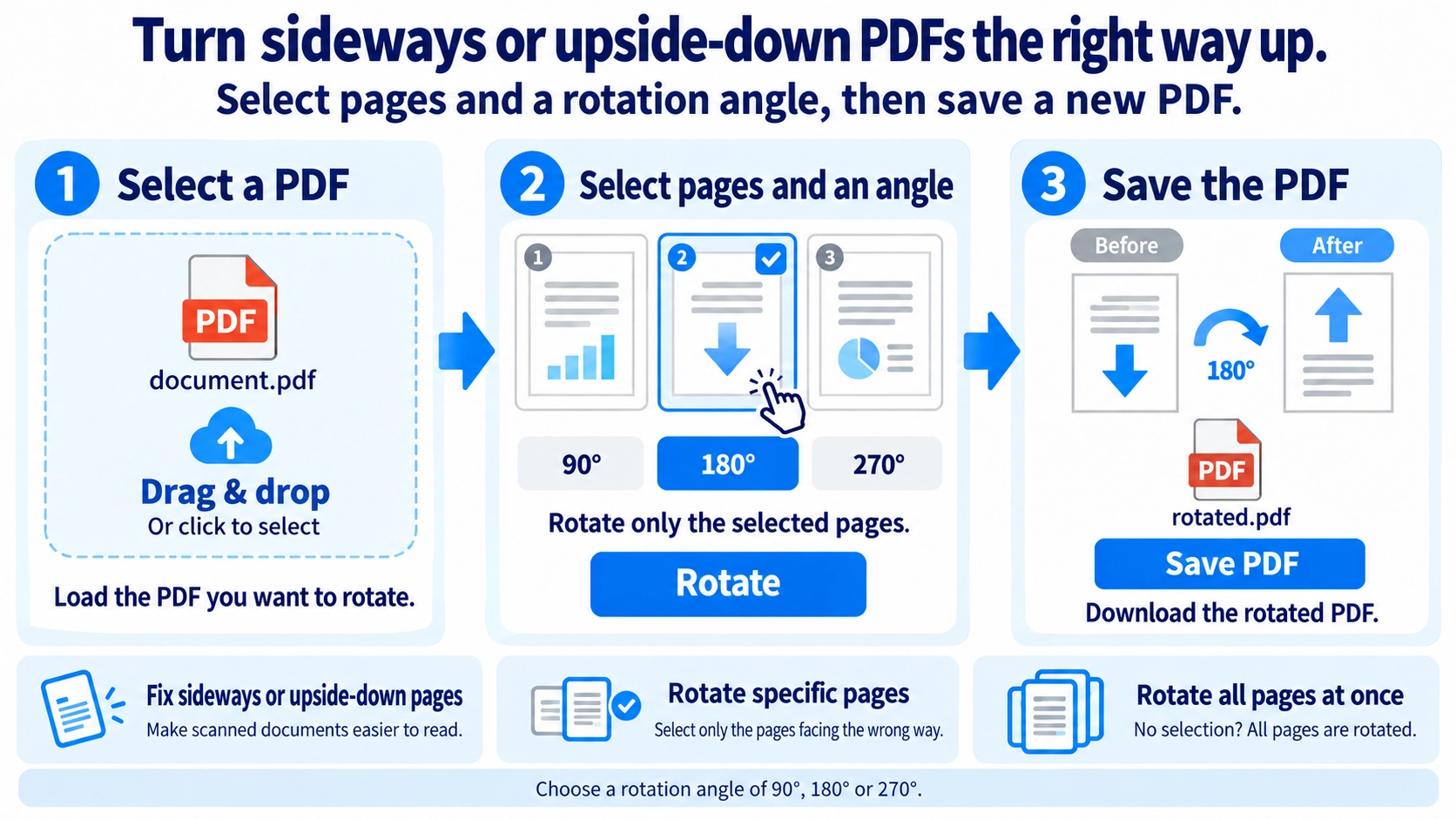
Rotate selected PDF pages by 90°, 180°, or 270°, or apply the rotation to every page, then save the result.
How to use it
- Choose a PDF and select a 90°, 180°, or 270° rotation.
- Select the pages you want to rotate; leaving all pages unselected applies the rotation to all pages.
- Click “Rotate” to apply the change.
- Download the rotated PDF.
Supported input and notes
If no individual pages are selected, the rotation applies to all pages. Review the page orientation before saving.
When it is useful
Useful for correcting sideways scanned pages and mixed page orientations.
PDF rotation fixes pages that were scanned sideways or upside down. Deciding whether the problem affects one page or the entire document helps you correct the orientation efficiently.
Common Uses
Use rotation when a scanned document is sideways, upside down, or contains a few pages whose orientation differs from the rest of the file.
Rotation Angle
90°
Useful when a portrait page is lying on its side in one direction.
180°
Corrects a page that is completely upside down.
270°
Rotates in the opposite direction from a 90° turn.
Selected pages
Best when only charts, plans, or a few scanned pages have the wrong orientation.
All or Selected Pages
- Scan through the PDF and note which pages are wrong.
- Use all-page rotation when every page needs the same correction.
- Use page-specific rotation when only part of the document is affected.
- Review portrait and landscape pages after saving to make sure each is readable.
Saved vs View Rotation
Some PDF readers rotate only the on-screen view. This tool changes the selected page rotation value by 90°, 180°, or 270° and saves that rotation into a new PDF.
This tool outputs a new PDF with the selected rotation applied. If consistent orientation matters, open the exported PDF in another viewer to confirm that the change was actually saved.
Rotation vs Page Size
Rotate
Turns the page by 90°, 180°, or 270° so it is read in the correct direction.
Crop or resize
Changes the visible area or page dimensions and serves a different purpose.
Turning a landscape page so it reads correctly is different from rebuilding it as a portrait-size page.
Mixed Orientation
Pages may have been fed in different directions, flipped during duplex scanning, or misdetected by an automatic orientation feature. Page-by-page rotation is a practical way to correct these mixed results.
Final Check
- Body text reads naturally
- Wide charts are not forced into an awkward orientation
- No page was missed
- Printing orientation still works as expected
Can I rotate only one page?
Yes. Select the page you want to rotate. If no pages are selected, the tool rotates every page.
Does rotating reduce PDF quality?
This tool changes the PDF page rotation value and does not rasterize the page, so it does not intentionally lower image resolution.
Can I rotate and reorder pages?
Use the rotation tool first or second, then use the page reorder tool for sequence changes.
Should a wide table be rotated?
Choose the orientation that makes the content easiest to read rather than forcing every page to look identical.
What should I do when only a few scanned pages are upside down?
Select and rotate only the pages with the wrong orientation. Duplex and batch scanning can produce mixed directions, so review the full output before saving or sharing it.