Choose a template and size, add text and optional images, then preview and download the finished PNG.
What this tool does
Create Open Graph images for social sharing in your browser. Customize templates, text, backgrounds, and logos, then download a PNG image.
How to use it
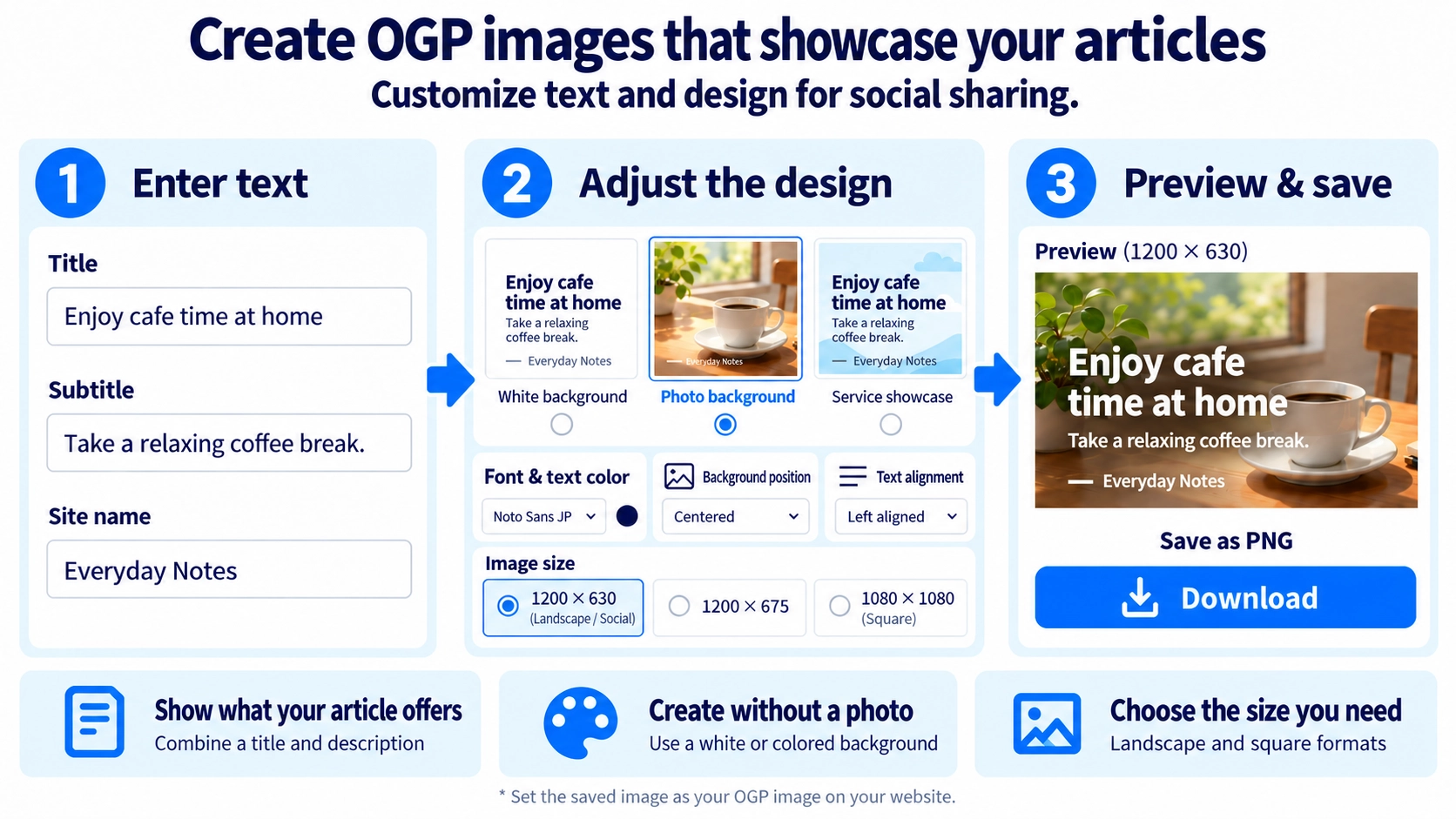
- Choose a template and output size for your social sharing image.
- Enter the title and optional subtitle or site name. Add a background image or logo if needed.
- Adjust the colors and layout, then review the canvas preview.
- Click “Download” to save the image as a PNG.
Supported input and notes
Choose from 1200 × 630, 1200 × 675, or square output. You can add background photos and logos. Check the preview for readability before downloading the PNG.
When it is useful
Useful for creating link preview images for articles, websites, and services shared on social platforms.
Choose Text Color to Match the Background Photo
Titles can become hard to read when the text and photo have similar brightness. White text usually contrasts well with darker photos, while black or another dark text color is often easier to read on lighter photos.
Dark photos
Try white text for stronger contrast with the background.
Light photos
Black or dark-colored text often makes the title more readable.
Long Titles Wrap Automatically
If a title exceeds its allotted width, it wraps onto multiple lines within the text-width setting. For longer titles, adjust the font size and text width until the result has a comfortable number of lines.
Adjust Which Part of the Background Photo Is Visible
A background photo fills the OGP frame, so edges may be cropped when its aspect ratio differs from the canvas. Adjust the photo’s horizontal and vertical position to keep a person or product visible within the frame.
Balance the Logo and the Title
You can add a logo image as well as a site name. Keep the logo understated when the headline should dominate, or adjust its size and placement if the brand needs more emphasis. Giving elements a clear visual priority keeps the design easier to scan.
Start With a Ready-Made Template
Instead of setting every color, alignment, and position from scratch, start with a preset such as a white-background article, photo background, or service introduction. Choose the overall look first, then adjust only the details you need.
OGP Image Maker FAQ
Do the subtitle and site name have to appear?
No. You can hide the subtitle and site name when they are not needed.
Can I use a size other than 1200 × 630?
Yes. You can also choose 1200 × 675 or a square 1080 × 1080 layout.
Can I download the OGP image as JPG?
No. This tool downloads images in PNG format.