Upload the image file. Adjust the available settings for the tool.
JPG / PNG / WebP supported
What this tool does
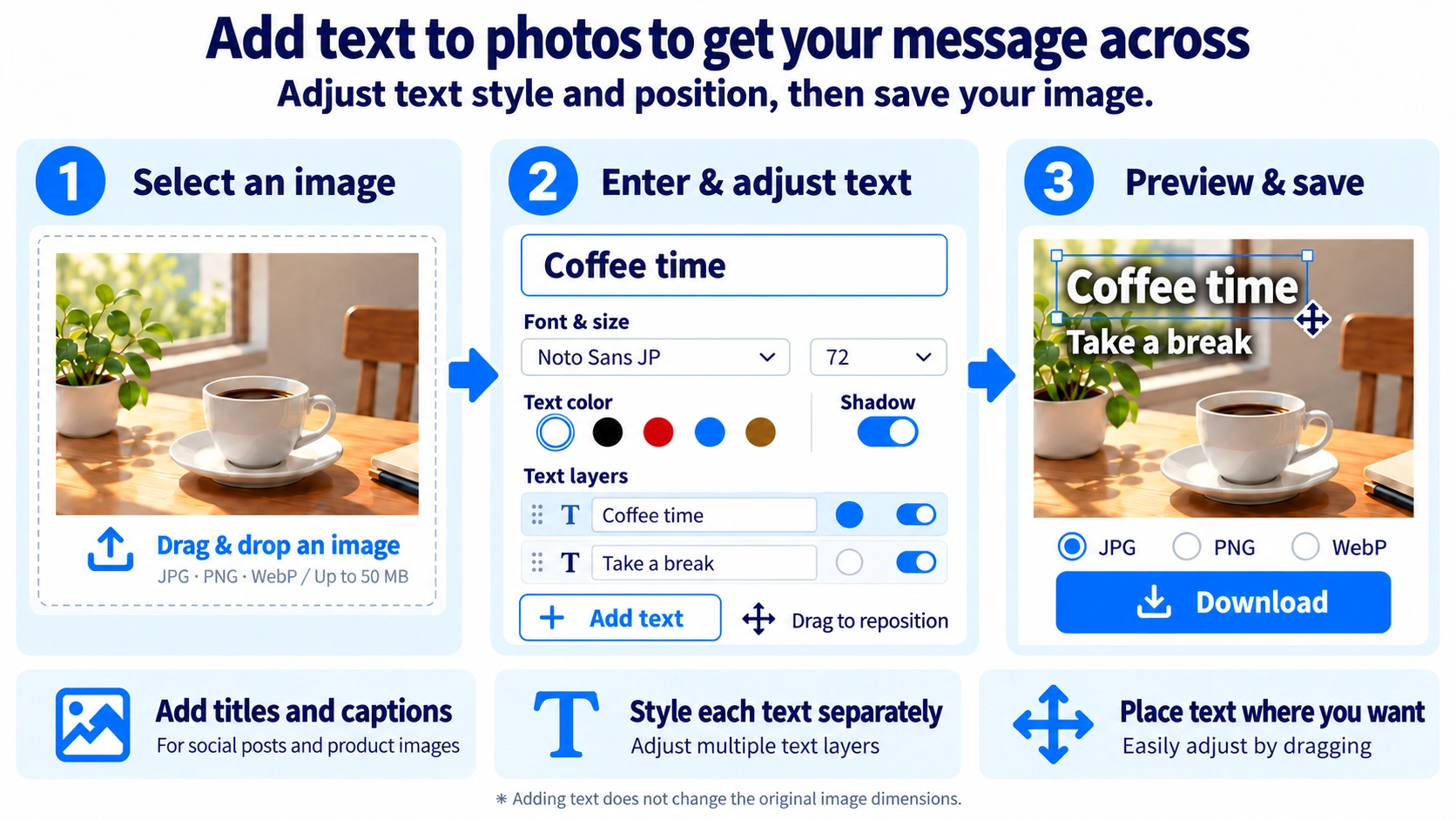
Add one or more draggable text layers to an image. Customize each layer’s font, size, color, shadow, and position.
How to use it
- Upload a photo and add one or more text layers using “Add text”.
- Edit the text, font, size, color, and optional shadow.
- Drag or align the text layers in the preview.
- Choose the output format and save the finished image.
Supported input and notes
Keep enough contrast between the photo and text. Use a text shadow where helpful and insert manual line breaks for longer sentences, as text does not automatically wrap to fit.
When it is useful
Useful for putting headings, labels, or captions directly onto photos.
Add Line Breaks to Long Text Yourself
Text does not automatically wrap to fit the width of the image. If a line extends past the edge, insert line breaks where they are easy to read and adjust the number of lines yourself.
Use Separate Layers for Different Types of Text
You do not need to put a title, supporting information, and a date into one text block. Add several text layers to give each its own position, size, color, and font.
Title
Use larger text or a bold font for the information you want people to notice first.
Supporting text
Use a separate layer with a smaller font size or different color to organize extra details.
Make Text Readable Against the Background
Text that is easy to read over a dark part of a photo may disappear against a light area, even with the same color. Move the text away from busy areas, change its color, or add a shadow to improve readability.
Layer Order Affects Overlapping Text
When text layers overlap, their order determines which appears in front. For overlapping designs, check the stacking order as well as each layer’s position.
Add Text to Image FAQ
Does adding text change the image dimensions?
No. Text is placed over the original image and saved at the original width and height.
Can I rotate text at an angle?
No. This tool does not provide free-angle text rotation.
Can I choose the file format?
Yes. You can save the image as JPG, PNG, or WebP.