Upload the image file. Adjust the available settings for the tool.
What this tool does
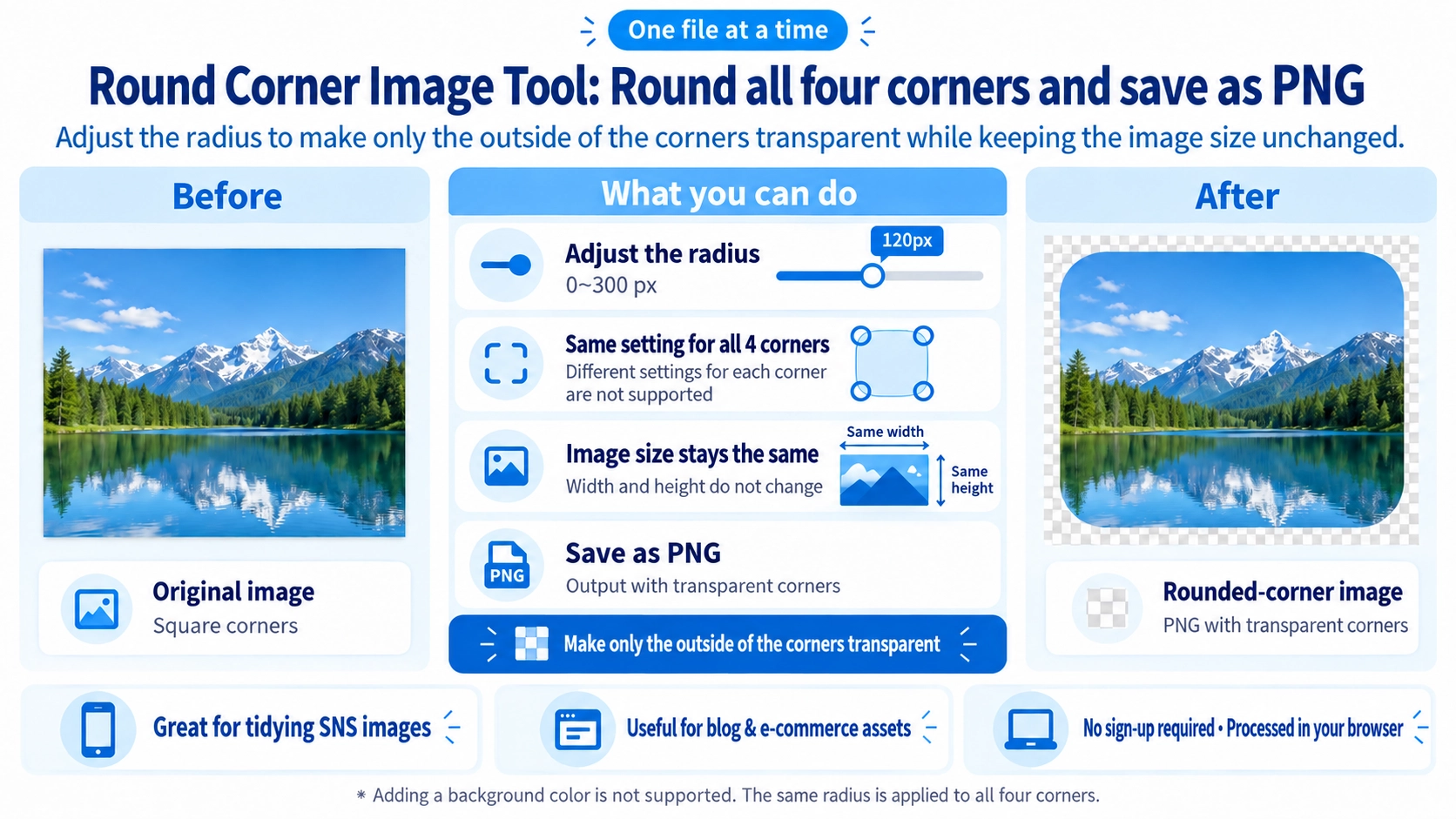
Round the corners of an image by adjusting the radius, and save a rounded image for websites or social posts.
How to use it
- Select an image to edit.
- Move the corner-radius slider to choose how rounded the corners should be.
- Check the preview for the intended corner shape.
- Click “Output” to download the resulting image.
Supported input and notes
Typical inputs are JPG, PNG, and WebP. Rounded corners create transparency; choose a suitable output format and review the result if a different background or quality is needed.
When it is useful
Useful for making soft-cornered cards, thumbnails, and interface graphics.
Corner Radius
A larger radius makes all four corners more rounded. The range is 0–300px; at 0px, no rounding is applied.
Image Size
Rounding does not resize the image. The output keeps the original width and height, while only the areas outside the rounded corners become transparent.
All Four Corners
You cannot set a separate radius for each corner or round only one corner.
Transparent Corners
No background color is added. The cut-off corner areas are transparent.
JPG Input
Regardless of the input format, the processed result is exported as PNG with transparent corners.
Circle-Like Shape
With a square image and a large radius, you can create a circle-like look. This remains a rounded-corner effect rather than a dedicated circular crop.
FAQ
Can I choose the output format?
No. The output is PNG.
Is the image content resized?
No. The original dimensions are preserved.
Does 300px always produce a 300px radius?
No. If the value is too large for the image, it is automatically limited.