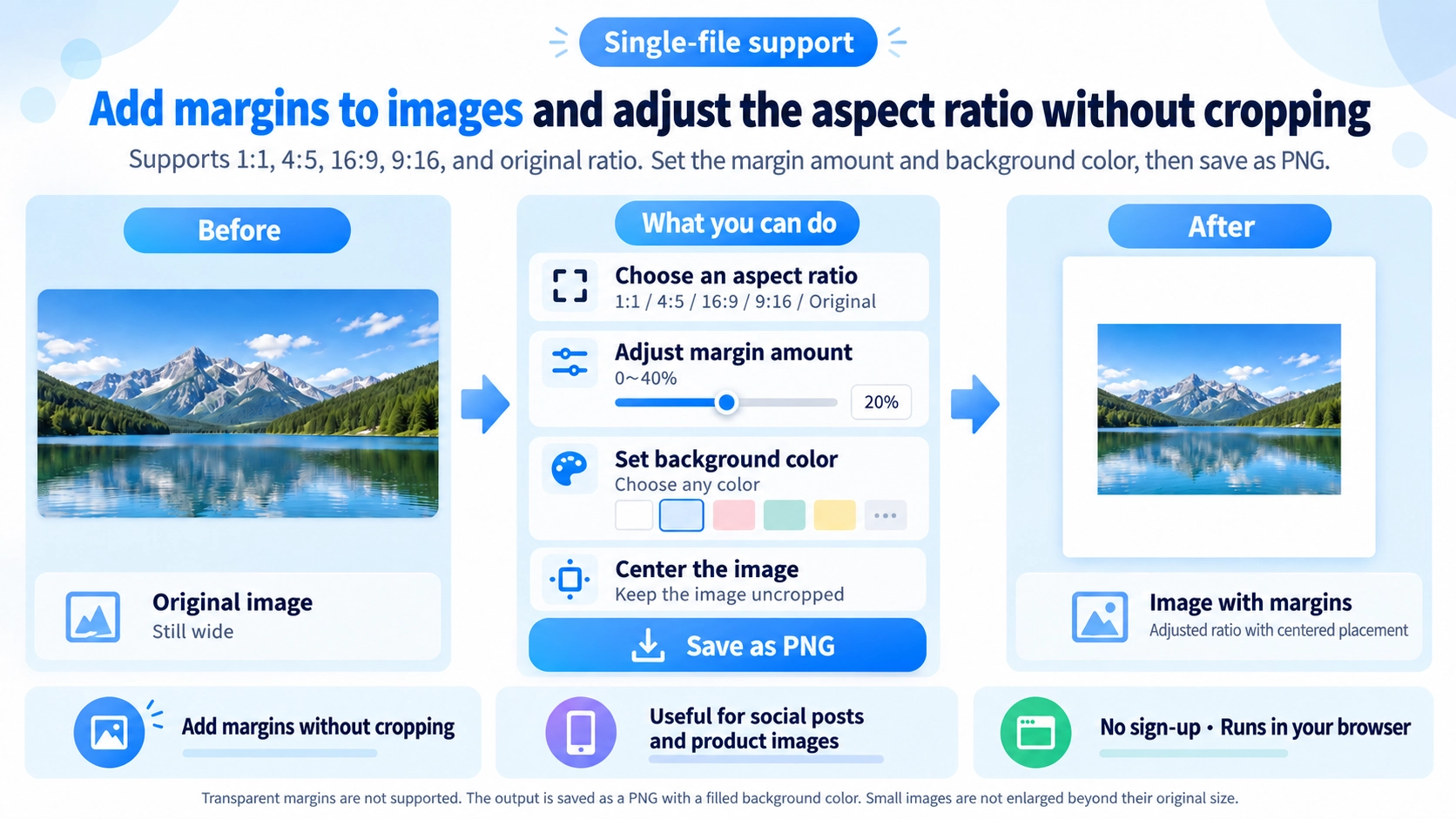
Upload an image, choose a canvas ratio and padding percentage, then set the background color. The image is centered on the canvas.
What this tool does
Add a colored margin around an image without cropping it. Choose a 1:1, 4:5, 16:9, 9:16, or original-aspect-ratio canvas and set padding from 0% to 40%.
How to use it
- Upload an image.
- Choose a canvas ratio: 1:1, 4:5, 16:9, 9:16, or Original.
- Set the padding percentage (0–40%) and background color.
- Check the centered preview and save the result as PNG.
Supported input and notes
Background color can significantly change the image’s appearance. Adjust the amount of padding for your intended use, such as social media posts or printed materials.
When it is useful
Useful for fitting photos into social platform aspect ratios without cropping the subject.
How Padding Works
Instead of adding a fixed number of pixels independently to each side, the tool creates a new canvas from the selected aspect ratio and padding percentage, then centers the source image inside it. The image is not cropped.
Aspect Ratios
1:1
Places the image inside a square canvas and fills the remaining area with the chosen background color.
4:5 / 9:16
Fits the image into a portrait canvas while keeping the source aspect ratio.
16:9
Fits the image into a landscape canvas. The source is not stretched horizontally.
Padding Amount
It controls how much space is reserved around the image. A larger value makes the image appear smaller relative to the canvas and leaves more background around it.
No Upscaling
The source image is never enlarged. It is only reduced when necessary to fit inside the output area.
Original Ratio
The canvas keeps the same aspect ratio as the source image while expanding to provide the selected padding percentage. The source aspect ratio itself is unchanged.
Background Color
Padding is filled with the selected background color. There is no transparent-padding option.
PNG Output
This tool exports PNG only. The saved filename includes _padding.
FAQ
Will choosing 4:5 or 9:16 distort the image?
No. The source aspect ratio is preserved and the image is fitted inside the selected canvas ratio.
Can I set different padding amounts for each side?
No. This tool uses one padding percentage and centers the image inside the selected canvas ratio.
Can I align the image to the left or right?
No. The image is centered on the new canvas.
Can I export JPG or WebP?
No. The output format is PNG.