Upload the image file. Adjust the available settings for the tool.
What this tool does
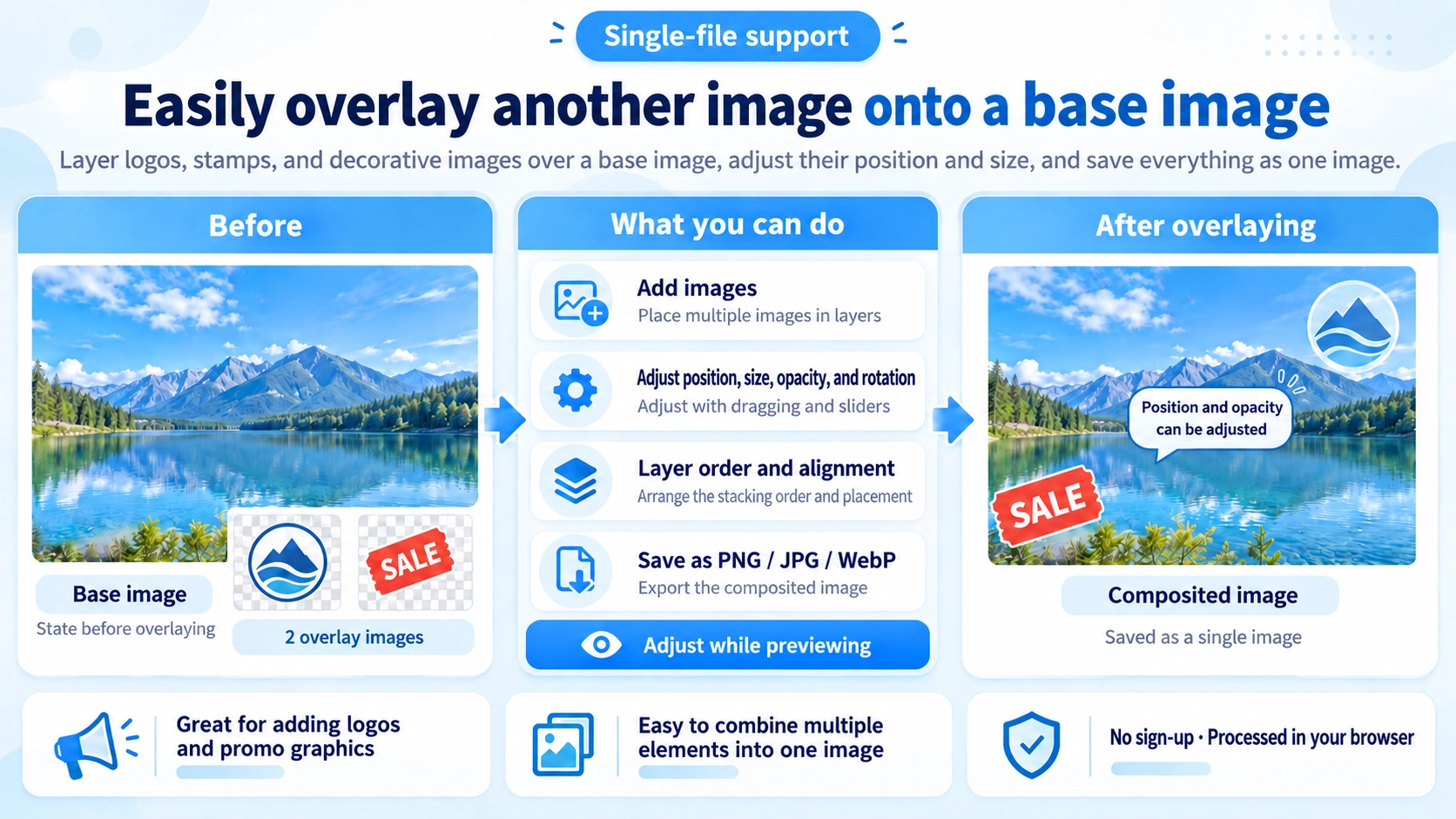
Place one or more images over a base image and adjust their positions, sizes, and opacity to create a combined image.
How to use it
- Upload the base image, then use “Add image” to insert one or more overlays.
- Select an overlay and adjust its size, opacity, rotation, and position.
- Change layer order or alignment as needed, and review the combined preview.
- Choose an output format and click “Output” to save the image.
Supported input and notes
Appearance depends on the aspect ratio and transparency of each overlay. Adjust opacity for a natural-looking logo or stamp, and check layer order before export.
When it is useful
Useful for placing a logo, sticker, or other image layer over a background image.
How Layering Works
The first image you load becomes the base. Additional images can then be placed on top as separate layers, and you can add more than one overlay image.
Positioning Overlays
You can drag an overlay directly in the preview. Preset positions such as top-left, top-right, bottom-left, bottom-right, and center are also available for quick placement.
Size, Opacity, and Rotation
The selected overlay can be resized from 5% to 200%, its opacity can be changed from 10% to 100%, and its rotation can be adjusted from -180° to 180°.
Layer Order and Alignment
Overlays can be moved forward or backward, aligned to edges or centers, and multiple selected layers can be moved or resized together.
Using Transparent Overlays
PNG or WebP overlays with transparency let you place logos or decorative elements without covering the background. JPG images do not support transparency.
FAQ
Can I add more than one overlay image?
Yes. You can add multiple overlay images.
Can each overlay have its own opacity?
Yes. Opacity is adjusted for the currently selected layer.
Which output formats are available?
You can save as PNG, JPG, or WebP. JPG and WebP are exported with quality 0.92.