Upload the image file. Adjust the available settings for the tool.
What this tool does
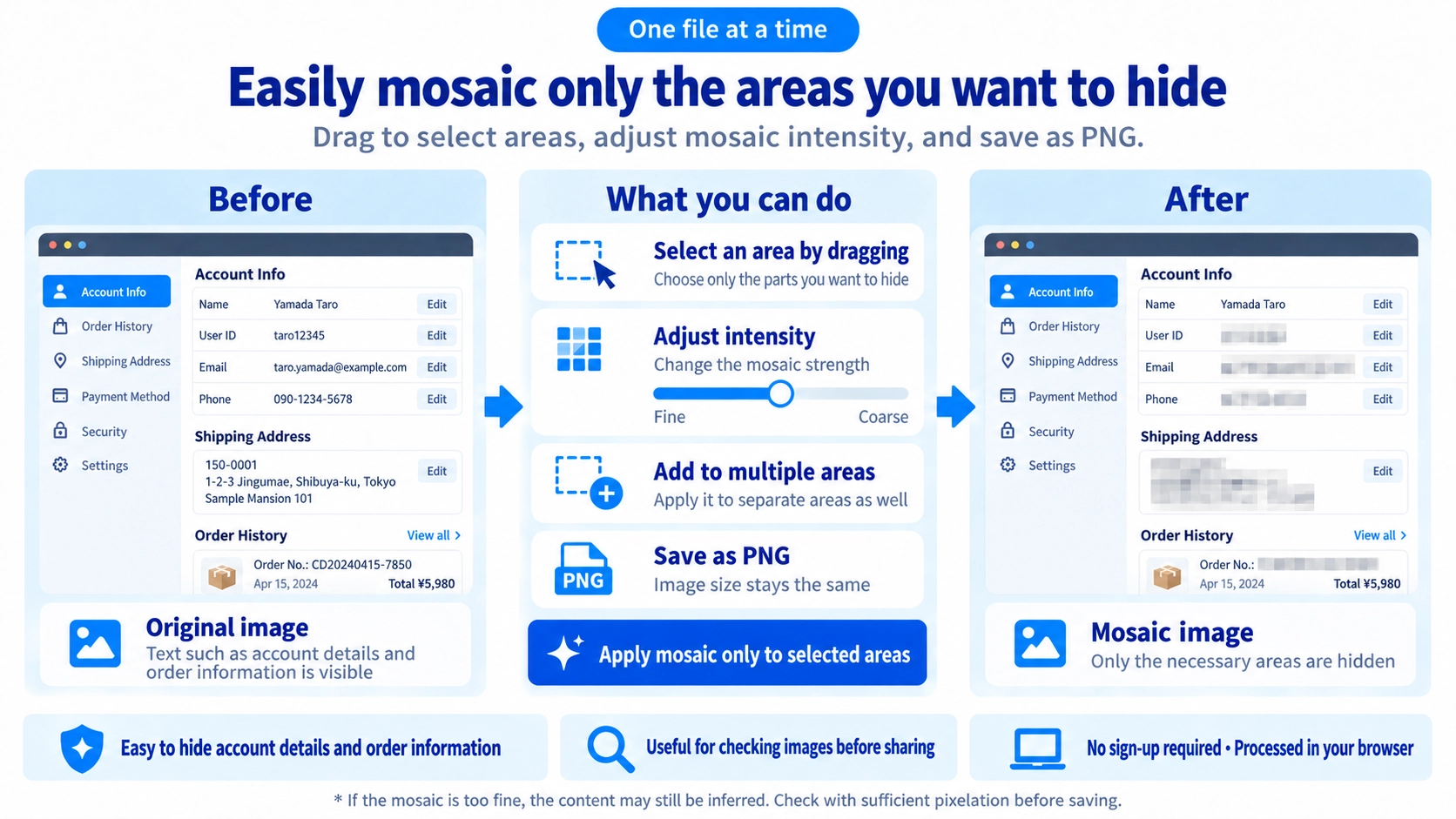
Drag over selected parts of an image to apply a mosaic effect. Adjust pixel size to hide faces, personal details, or other sensitive areas.
How to use it
- Upload an image and set the mosaic block size.
- Drag over the parts of the image you want to pixelate.
- Review the covered areas and use “reset” if you need to start again.
- Click “Output” to save the edited image.
Supported input and notes
A very fine mosaic may leave details recognizable. If you are concealing personal information, use a sufficiently coarse effect and inspect all covered areas carefully.
When it is useful
Useful for pixelating selected faces, labels, or details in an image before sharing.
Selected Area
Instead of pixelating the whole image, drag across the specific area you want to hide.
Multiple Areas
After processing one area, drag over another area to add another mosaic region.
Undo
Undo removes the latest mosaic operation one step at a time. You cannot select and remove an arbitrary earlier region independently.
Mosaic Size
The range is 8–260. Larger values create larger blocks and make fine details harder to recognize.
Image Size
The processed result keeps the same width and height as the source image.
Sensitive Information
Mosaic makes content harder to see, but it does not remove the underlying information. Check the exported image and make sure the content can no longer be recognized.
FAQ
Can I mosaic a very tiny area?
Very small selections are ignored. Select a slightly larger area.
Can I export JPG or WebP?
No. The output is PNG.
Is the source file overwritten?
No. The processed result is saved separately.