Upload the image file. Adjust the available settings for the tool.
What this tool does
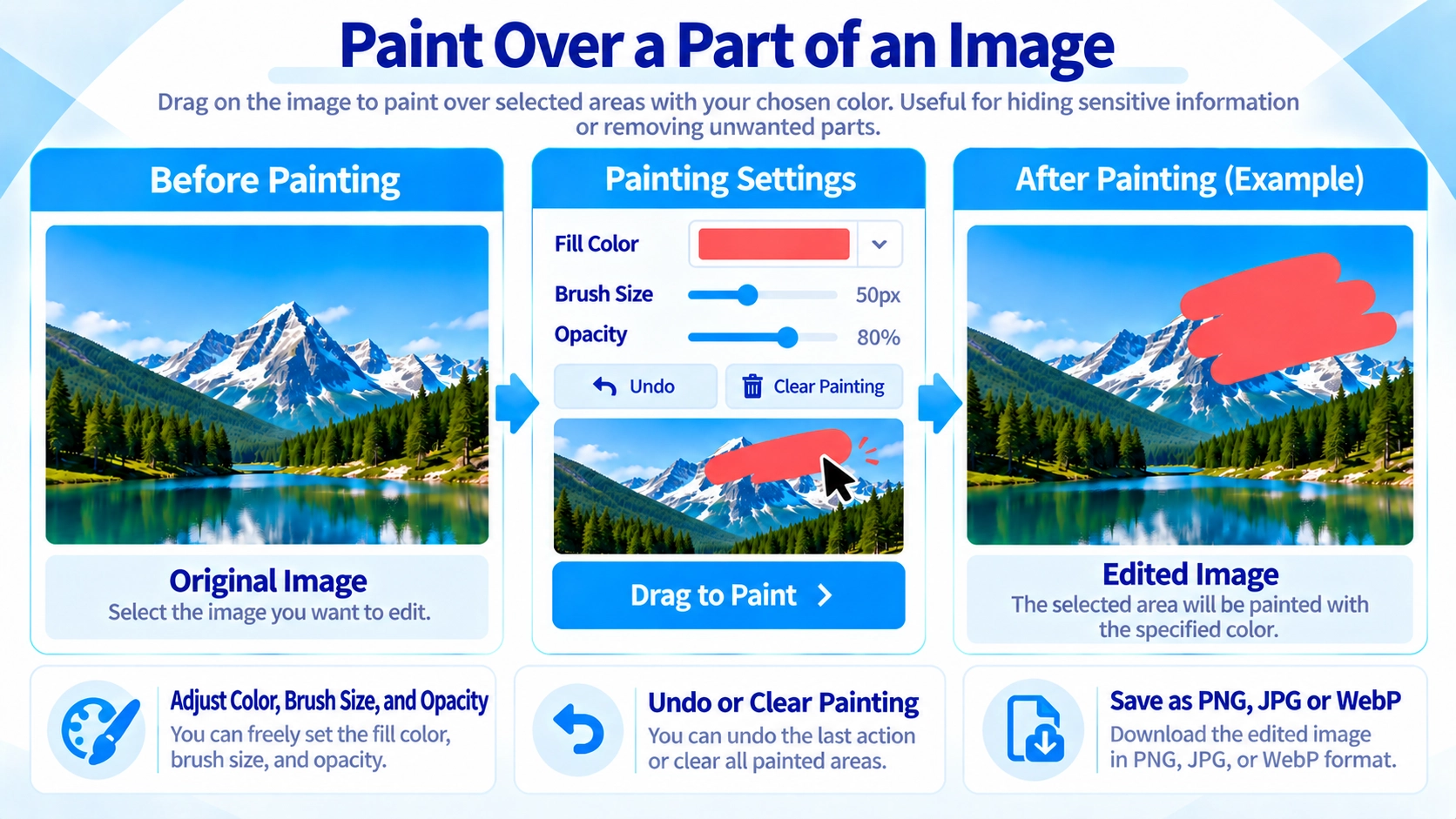
Paint over parts of an image with an adjustable brush. Change brush size, color, and opacity to hide private or unwanted areas before saving.
How to use it
- Upload an image and select the fill color.
- Choose the brush size and opacity, then drag over areas you want to cover.
- Use “Undo” or “Clear fill” to adjust the painted areas.
- Select an output format and click “Output” to save the result.
Supported input and notes
Mainly supports JPG, PNG, and WebP. Image size and output format can affect processing time and transparency. If you are covering private details, carefully check that the area is fully hidden before sharing.
When it is useful
Useful for covering visible details in screenshots or photos with a solid or semi-transparent color.
Brush-Based Fill
Dragging on the image draws the selected color along the brush path. This is not a rectangular selection tool; it works like painting over the image.
Brush Size
Use a small brush for fine details and a large brush for wider areas. A single click also places a filled circle based on the current brush size.
Opacity
Opacity can be set from 20% to 100%. At 100%, the painted color fully covers the image below. Lower values produce a semi-transparent fill.
Undo and Clear
Undo removes the most recent brush stroke. Clear fills removes all painted areas and returns to the original loaded image.
Covering Sensitive Information
The tool saves a painted version of the image; it does not delete the original pixels from the chosen area. If you need text or private information to be unreadable, paint enough area at 100% opacity and verify the result after export.
Output Formats
You can export the result as PNG, JPG, or WebP. JPG is saved with quality 0.92.
FAQ
Can I fill a rectangular selection all at once?
No. The tool uses a brush that you drag over the image.
Can I redo only one older painted area?
No. You can undo strokes in reverse order, but you cannot select an arbitrary older stroke for deletion.
Which output formats are available?
PNG, JPG, and WebP.