Provide the input text, data, or file. Choose the tool options that match your goal.
What this tool does
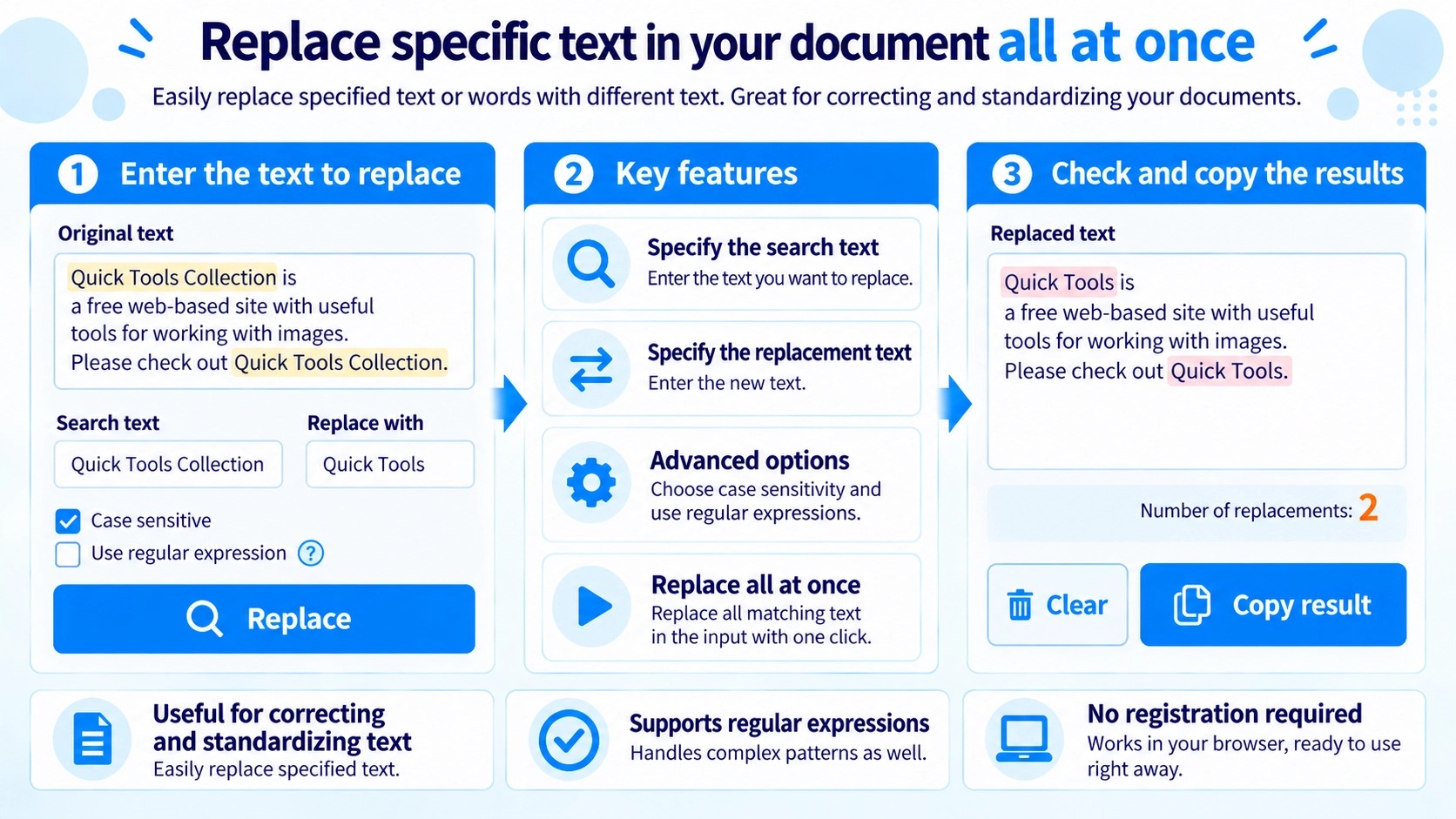
Search and replace text in one pass. Choose case sensitivity or regular expressions, review the result, and copy the updated text.
How to use it
- Paste the source text into the editor.
- Enter the text or pattern to find and its replacement.
- Enable regular expressions or case sensitivity if needed.
- Click “Replace”, review the output, and copy it.
Supported input and notes
Regular-expression patterns can match more text than a literal search. Review the replacement result before reusing it.
When it is useful
Useful for changing repeated words, codes, or patterns across a block of text.
Replace All Matches
Every matching occurrence is replaced at once, making it useful for repeated names, URLs, or wording.
Case Sensitivity
Search is case-insensitive by default. Enable case sensitivity to treat Apple and apple as different strings.
Regular Expressions
Regex mode lets you search for text patterns instead of one literal string.
Symbols in Normal Search
With regex mode off, characters such as ., *, and ? are treated as literal characters.
Delete with a Blank
Leave the replacement field empty to remove every matching occurrence.
Replacement Count
After processing, the tool shows how many replacements were made.
FAQ
Can I replace only one match?
No. The tool replaces all matches.
Can I delete matching text?
Yes. Leave the replacement field empty.
Why does regex mode show an error?
An invalid regular expression causes an error. Turn regex mode off for normal literal replacement.