Upload the source file. Choose the pages, layout, or other tool-specific options.
What this tool does
Remove one or more selected pages from a PDF and download a new PDF containing the remaining pages.
How to use it
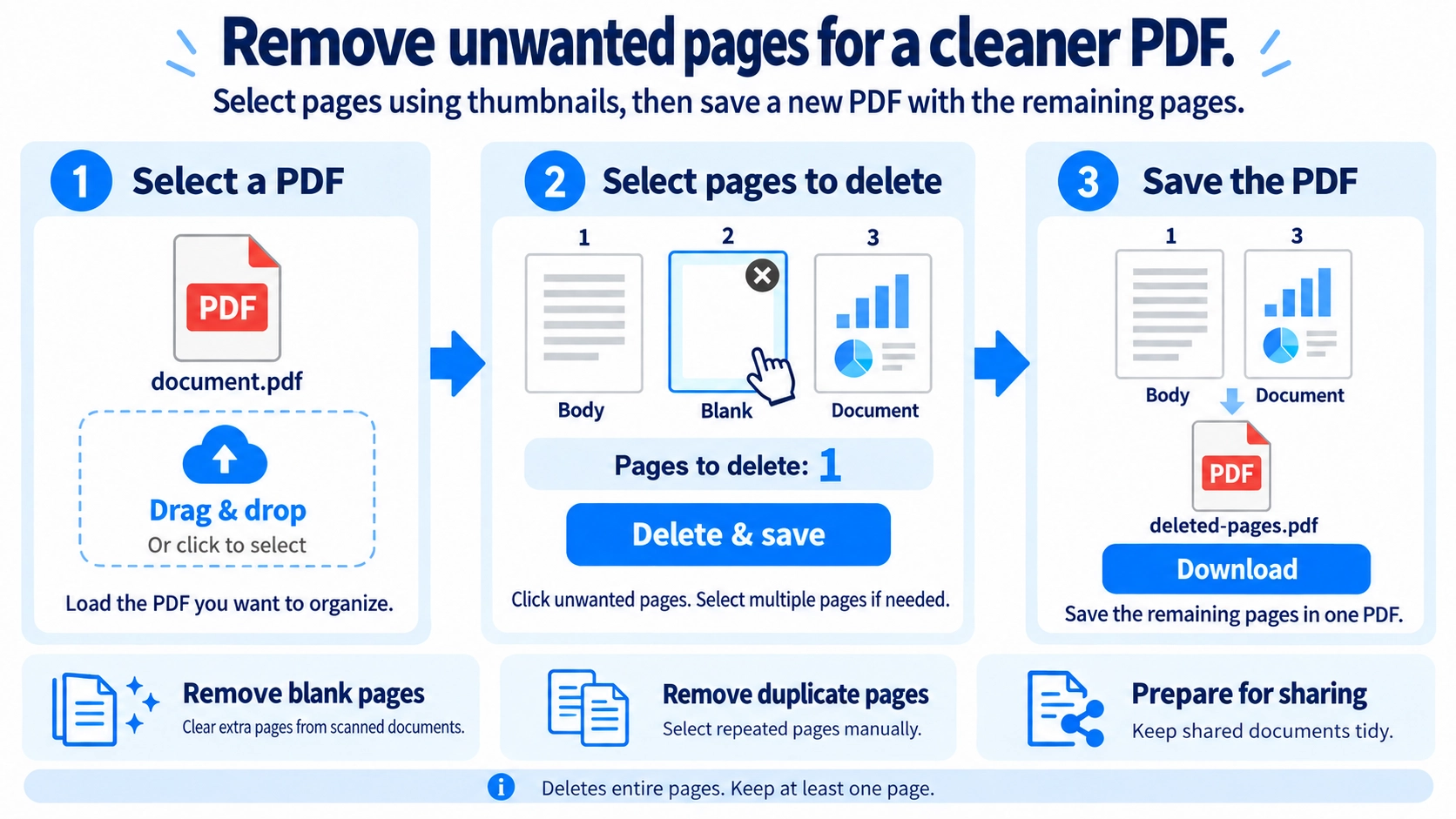
- Upload a PDF to edit.
- Click the page thumbnails to mark the pages you want to remove.
- Check that only the intended pages are highlighted.
- Click “Delete and save” and download the remaining pages as a PDF.
Supported input and notes
A new PDF containing only the remaining pages is created. The original document’s PDF bookmarks or outline are not carried into the exported copy.
When it is useful
Useful for removing blank, outdated, or unneeded pages from a PDF.
Deleting PDF pages is useful for removing blank, duplicate, or unnecessary pages. It is important, however, to distinguish removing an entire page from securely redacting sensitive information inside a page.
What It Does
You select pages to remove and create a new PDF containing the remaining pages. It is useful for cleaning scans, removing duplicate inserts, or preparing a shorter version for submission.
Common Examples
Blank scan pages
Empty pages created by duplex scanning.
Duplicates
A page scanned or merged twice by mistake.
Unneeded covers
Instruction, cover, or back pages not required for submission.
Out-of-scope material
Pages that a particular recipient does not need.
Avoid Mistakes
- Confirm the page number and content in the source PDF.
- Remember that the cover may count as page 1 in the viewer even if the printed numbering starts later.
- Delete the selected pages and open the result.
- Check the pages immediately before and after each deletion point.
Blank Pages
Blank pages can come from duplex scanning, manual page breaks, or layout rules that force chapters to start on odd or even pages. They are not always accidental.
Before deleting one, check whether it serves a purpose in a booklet or print layout.
Delete vs Crop
Delete pages
Removes an entire page from the PDF.
Crop pages
Keeps the page but changes the visible area or margins.
Cropping should not be treated as a secure redaction method for sensitive information. Use an appropriate redaction workflow when data must be permanently removed.
Page Numbers and Bookmarks
The viewer page order closes the gap after deletion, but page numbers already printed inside the page content do not renumber automatically.
This tool creates a new PDF from only the pages you keep, so the source document outline/bookmarks are not carried into the new PDF. Recreate bookmarks afterward if the output needs them.
Before You Start
- The page is truly unnecessary
- The table of contents or text does not reference it
- A blank page is not intentionally part of print layout
- Visible page numbers will still make sense afterward
Can I restore a deleted page later?
The exported PDF has no command to restore a page that was removed. Keep the original PDF so you can redo the deletion if needed.
Can I delete multiple pages at once?
Yes. Select multiple pages and delete them in one operation.
Will deleting pages reduce file size?
Deleted pages are not copied into the output PDF, so the file can become smaller. The tool does not compress the remaining content, so the amount of size reduction depends on the document.
Is deleting a page enough to remove sensitive information?
The selected page is not copied into the output PDF, so this tool can remove an entire page from the shareable version. The original PDF still remains on your device, so follow your organization’s storage and sharing rules for sensitive files.
What if I want to keep only one page and remove everything else?
When most pages are being removed, it can be easier to use the PDF page extraction tool and select only the page you want to keep.