Upload the image file. Adjust the available settings for the tool.
Horizontal flip / vertical flip supported
What this tool does
Flip one image horizontally, vertically, or in both directions, then save the mirrored result.
How to use it
- Choose a single image to flip.
- Select horizontal, vertical, or both directions.
- Click “Flip” to apply the selected transformation.
- Download the flipped image.
Supported input and notes
Common inputs are JPG, PNG, and WebP. Large images may take longer to process, and the output format can affect quality and transparency. Flipping changes orientation without rotating.
When it is useful
Useful for mirroring a portrait, product photo, or layout element without editing other images.
How a Horizontal Flip Changes the Image
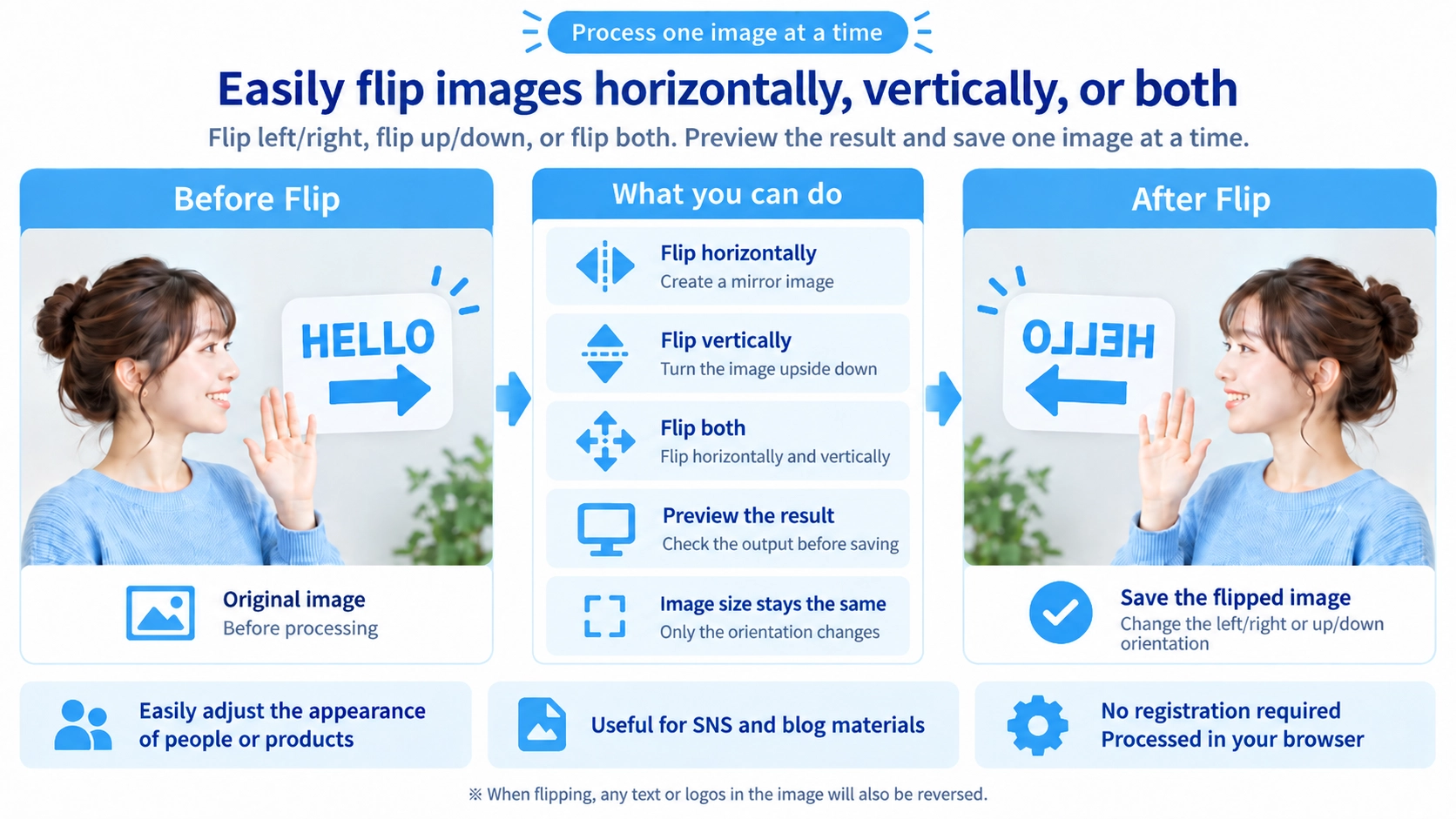
A horizontal flip reverses the direction of people, objects, and composition. It is useful when you want to reverse the direction of a subject or adjust the balance of a layout.
Choosing the Flip Direction
Horizontal
Mirrors the image from left to right, like viewing it in a mirror.
Vertical
Swaps the top and bottom. Choosing both reverses the image in both directions.
Text and Logos Flip Too
The entire image is flipped, so text and logos inside the picture are reversed as well. Check readability after flipping images that contain lettering.
Image Dimensions Stay the Same
Flipping does not change the image width or height. It changes orientation without resizing or cropping the image.
Animated GIFs Become Still Images
GIF files can be loaded, but their animation is not preserved in the output.
FAQ
Is flipping the same as rotating?
No. Flipping mirrors the image, while rotating changes the angle of the whole image.
Can I flip multiple images at once?
This page is for one image at a time. Use the batch flip tool when you need to process several images together.
Is the original overwritten?
No. The edited result is saved as a separate file.