Add the files you want to process. Choose the shared output settings for the batch job.
What this tool does
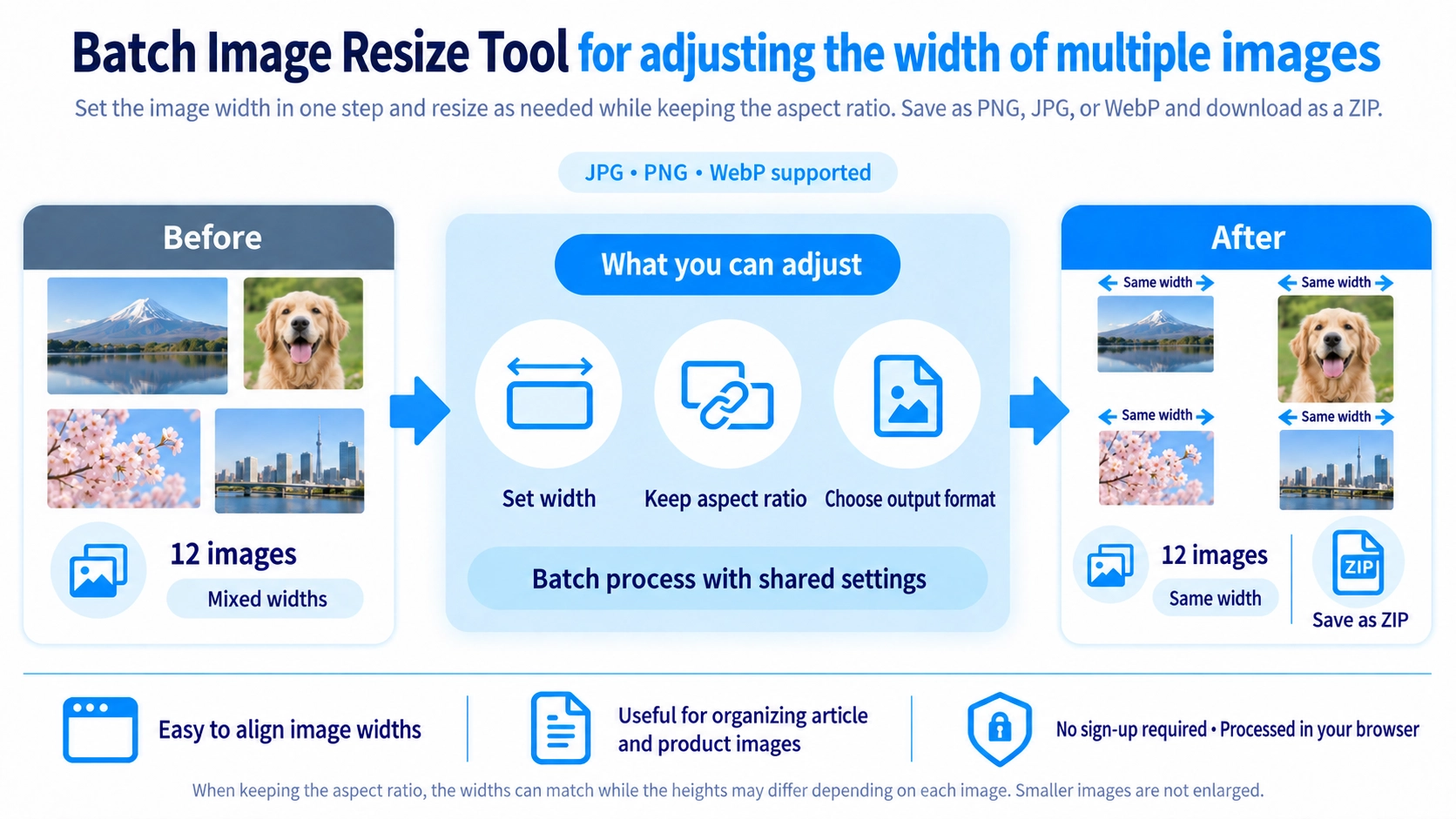
Resize multiple images to the same width while preserving aspect ratio. Export as JPG, PNG, or WebP and download the results as a ZIP.
How to use it
- Select multiple images to resize.
- Set a target width and choose whether to keep each image’s aspect ratio.
- Choose the output image format.
- Click “Save as ZIP” to save the resized images together.
Supported input and notes
You can resize while keeping the aspect ratio. Processing many images at once may require more device memory; disabling aspect-ratio preservation may also stretch the results.
When it is useful
Useful for bringing a collection of product, blog, or gallery images to a common width.
Matching Width Does Not Match Height
When aspect ratio is preserved, images can share the same width while keeping different heights. A landscape photo and a portrait photo resized to 1200px wide will not end up with the same height.
Use Cropping When Width and Height Must Both Match
Match Width
Each image keeps its original proportions, so height changes according to the source image.
Match Width and Height
For identical dimensions such as square product images, resizing alone is not enough. Use image crop as well.
Smaller Images Are Not Enlarged
If an image is already narrower than the selected width, it keeps its original width. For example, selecting 1200px does not stretch an 800px image to 1200px.
Turning Off Aspect Ratio Changes the Shape
When “Keep aspect ratio” is off, only the width changes while the original height is kept. This changes the image proportions and can make people or objects look horizontally squeezed or stretched. For ordinary photos, keeping the aspect ratio is usually the more natural choice.
Resizing Can Also Reduce File Size
Reducing image dimensions lowers the pixel count, which can also reduce file size. However, this tool is intended for resizing rather than detailed compression control. Use batch compression when file size is the main goal.
Transparency Depends on the Output Format
Saving resized images as JPG removes transparency. Use PNG or WebP when transparent backgrounds need to be preserved.
Choose the Approach by Use Case
Article Images
Reducing oversized photos to a practical display width can avoid unnecessarily large images on a page.
Product Images
Matching width is useful for listings, but cropping is still needed when every image must have the same shape or dimensions.
FAQ
If widths match, will heights match too?
No. With aspect ratio preserved, height depends on each image's original proportions.
Will images smaller than the target be enlarged?
No. They keep their original width.
What happens if I turn off aspect ratio?
The width changes while the original height stays the same, which can make the image look horizontally squeezed or stretched.