Upload an .xlsx or .xls file. Choose or review the target sheet.
What this tool does
Convert one selected sheet from an .xlsx or .xls workbook to a UTF-8 CSV file. Preview the data and download the result in your browser.
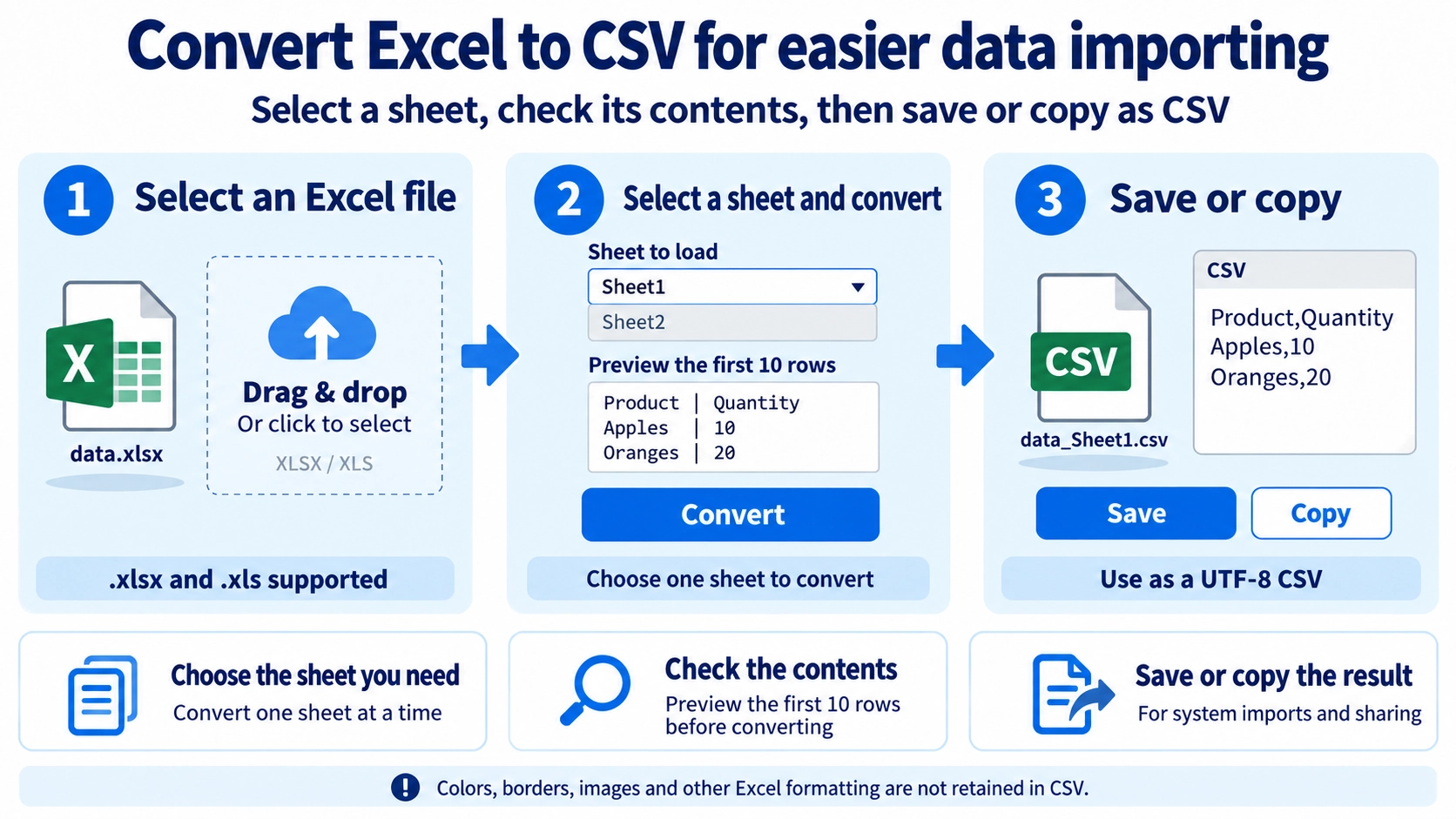
How to use it
- Upload an .xlsx or .xls file.
- Choose or review the target sheet.
- Run the CSV conversion and review the content.
- Download the CSV file.
Supported input and notes
Formatting, formulas, and embedded objects are not preserved in CSV. Check headers and the resulting column layout before use.
When it is useful
Useful for preparing spreadsheet data for imports, exports, or other systems that require CSV.
What CSV Keeps
CSV keeps the worksheet's table values, but visual Excel features such as background colors, borders, fonts, and column widths are not carried into the CSV file.
Multiple Worksheets
CSV has no worksheet structure. If the Excel file contains several sheets, choose one sheet and convert that sheet to CSV.
Preview Before Conversion
The first 10 rows of the selected sheet are shown before conversion. Switching sheets updates the preview so you can confirm the target data.
One Sheet at a Time
The tool does not export every worksheet to separate CSV files in one operation.
Saved File Name
The CSV file name combines the original Excel file name with the selected sheet name, making the source sheet easier to identify later.
FAQ
Can I use older .xls files?
Yes. Both .xlsx and .xls are supported.
Can all worksheets be converted at once?
No. One selected worksheet is converted at a time.
Are Excel colors and borders kept?
No. CSV keeps the table values rather than Excel's visual formatting.