Provide the input text, data, or file. Choose the tool options that match your goal.
Automatically trim transparent PNG padding
What this tool does
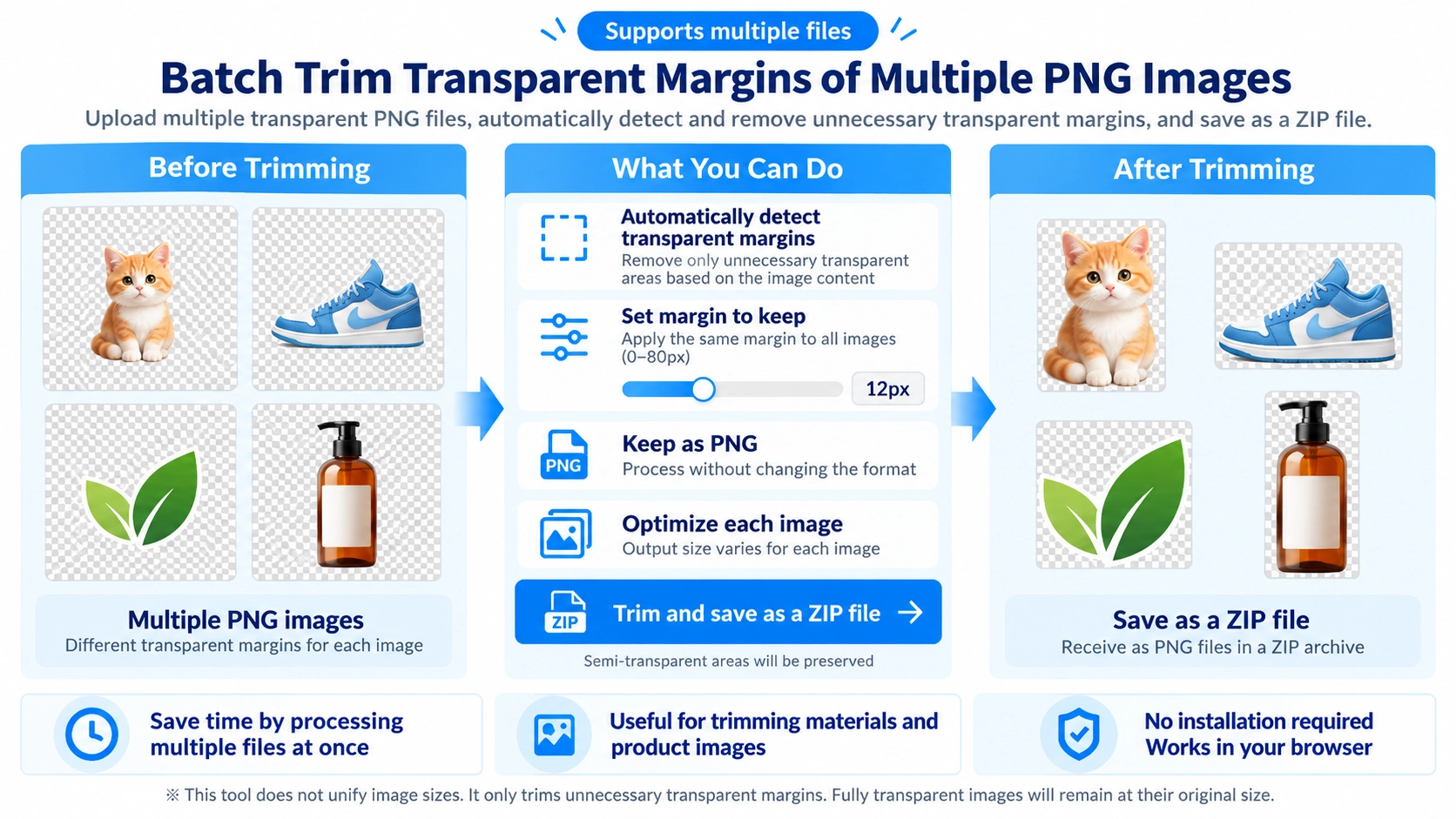
Trim fully transparent margins from multiple PNG images while keeping the remaining image content, then download the trimmed PNGs as a ZIP.
How to use it
- Select the transparent PNG files you want to trim.
- Choose how much transparent padding to retain around each image.
- Click “Trim” to process the images.
- Download the trimmed PNGs together as a ZIP.
Supported input and notes
Only PNG input is supported. Only fully transparent pixels along the edges are trimmed; semi-transparent pixels remain.
When it is useful
Useful for cleaning the transparent margins of multiple icons or product cutouts.
Trim multiple transparent PNG files in one batch
Select multiple PNG files and remove transparent outer margins from each image. The processed PNG files are packaged into a ZIP.
Each image can end up with a different size
Every file is trimmed according to its own non-transparent content, so the final width and height can differ. This is not a tool for standardizing image dimensions.
One padding value is shared by the entire batch
Choose 0–80px of padding to keep. The same value is applied to every selected image.
Semi-transparent pixels are kept
Only fully transparent pixels count as removable outer space, so shadows, glows, and other semi-transparent details remain.
Keeping padding is different from adding padding
The setting only controls how much existing transparent space remains. It does not create new space outside the original canvas.
Batch Transparent PNG Trim FAQ
Can I include JPG or WebP files?
No. This tool accepts PNG only.
How are the results saved?
Each image is saved as PNG with _trim added to the filename, then packaged into a ZIP.
Is there a fixed file-count limit?
No fixed limit is set, but large batches may take longer depending on your device.